
What Prestige is great at
Prestige is known for luxury positioning and editorial polish. If that matches your brand, keep it — you don’t need a new theme, just more sections.
Where it runs out of sections
- Social proof beyond the built-in blocks
- Objection-handling layouts (comparisons, FAQs) stay minimal
Best Section Shop sections for Prestige
Picked from Testimonials & Reviews, Image with Text, FAQ Sections — all free, all native to the theme editor.
 Free
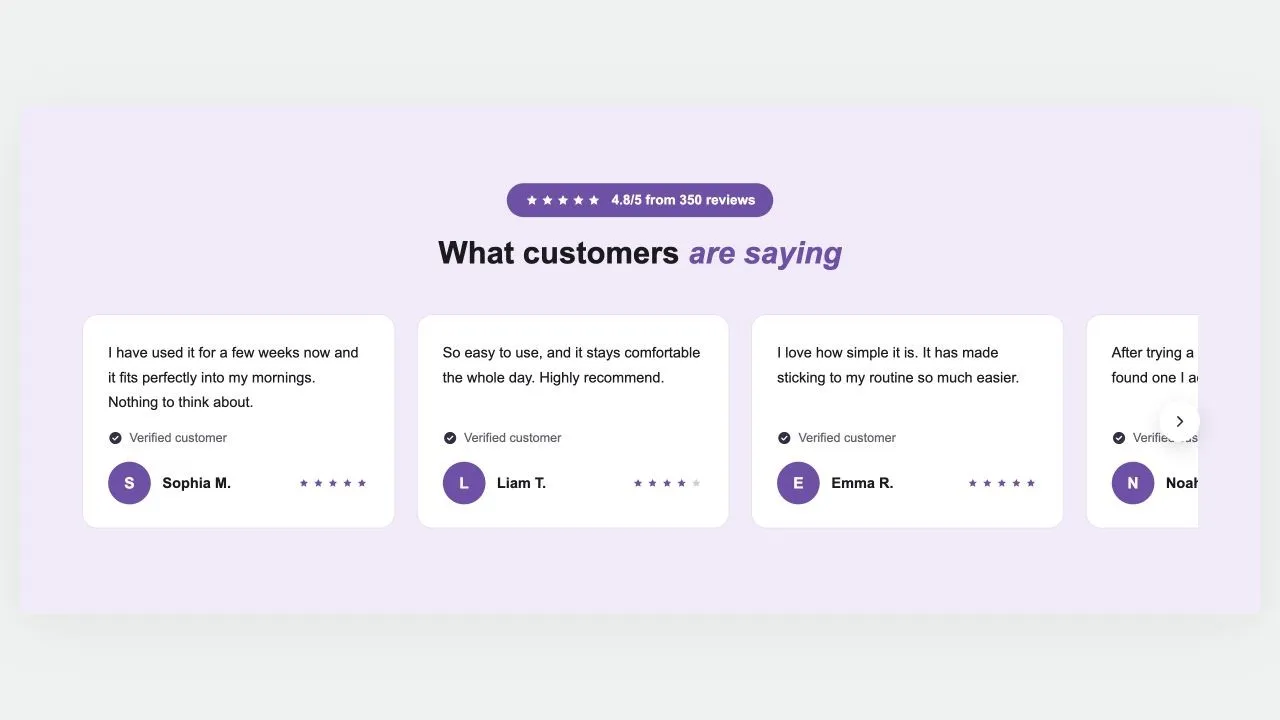
Free Review Cards 1
15 installsTestimonials & Reviews
Customer reviews on a coloured band: a star rating in a pill, a heading and a row of cards that scrolls, each with the review, a verified mark, an initial or photo, the name and stars. Arrows on computers, a swipe on phones, and wavy edges if you want them.
View section →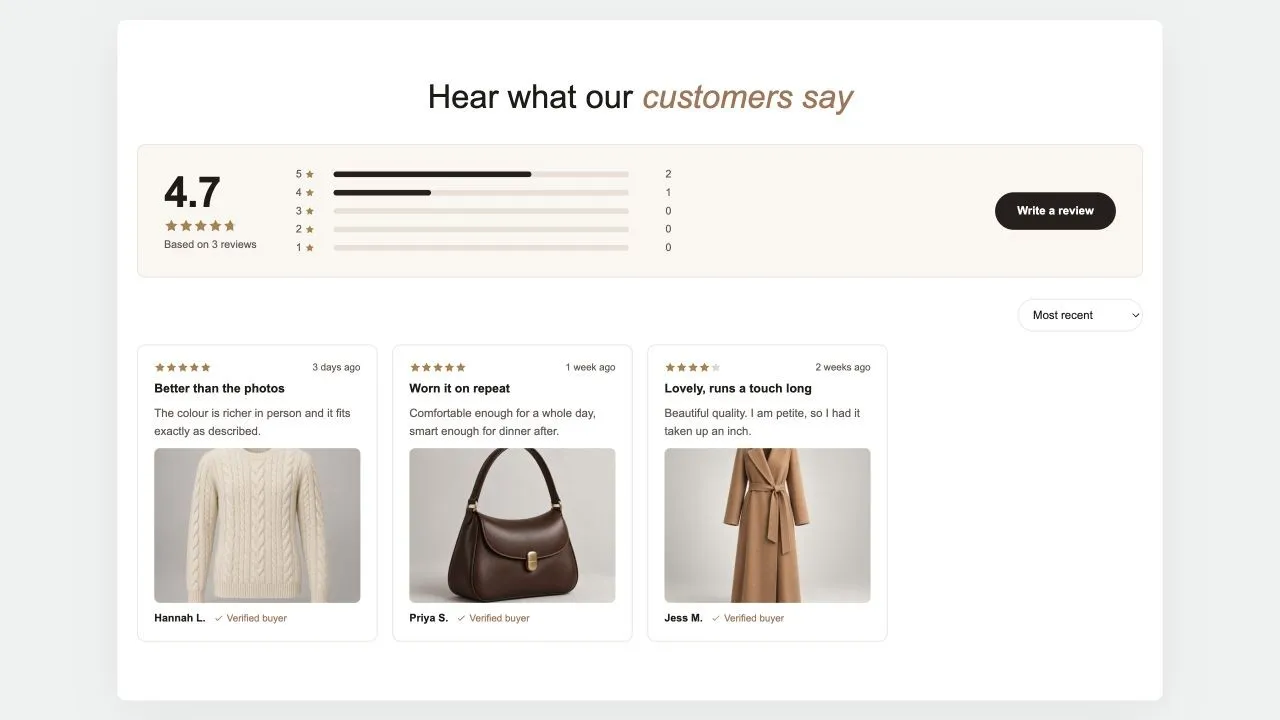 Free
Free Reviews Summary 1
Testimonials & Reviews
A reviews page in one section: the average and how many reviews it rests on, a bar for each star, a button to write one, then the reviews in a masonry wall with a sort menu and a Load more button. The summary is worked out from the reviews added here, or typed in when the real numbers live in another app.
View section →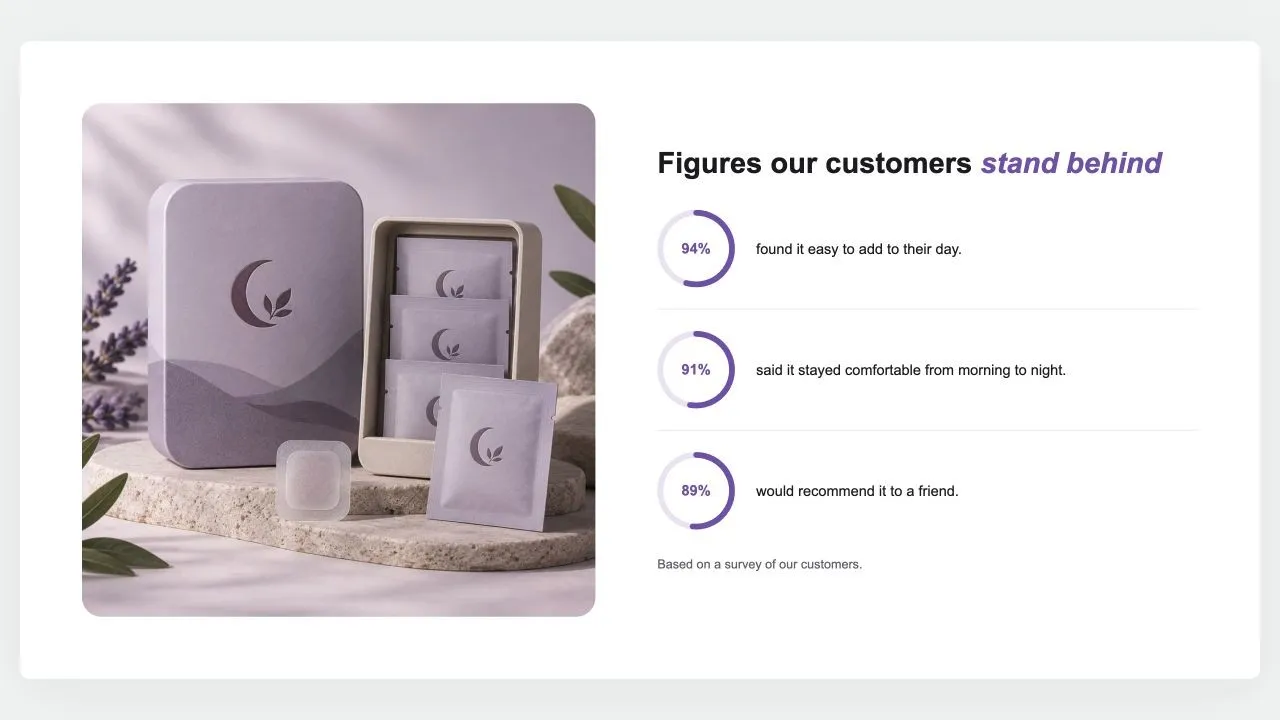 Free
Free Stat Rings 1
Image with Text
A photo beside a heading and up to six figures, each a ring filled to its percentage with the number inside and a line of text. The rings fill as they scroll into view, and a note says where the figures come from.
View section →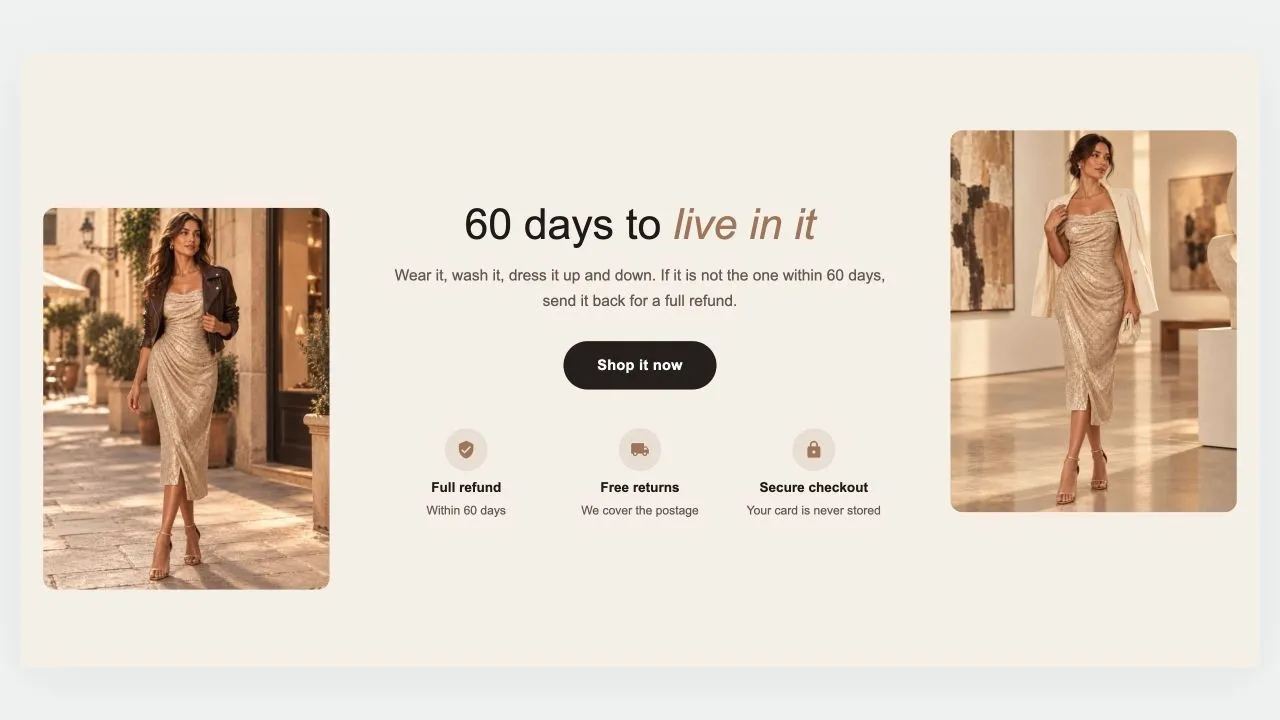 Free
Free Guarantee Band 1
Image with Text
A guarantee told between two photos: a heading, a short promise and a button in the middle, a row of reassurances underneath, and a picture on each side, staggered for a little movement. On phones the photos sit side by side above the words, or step aside altogether.
View section →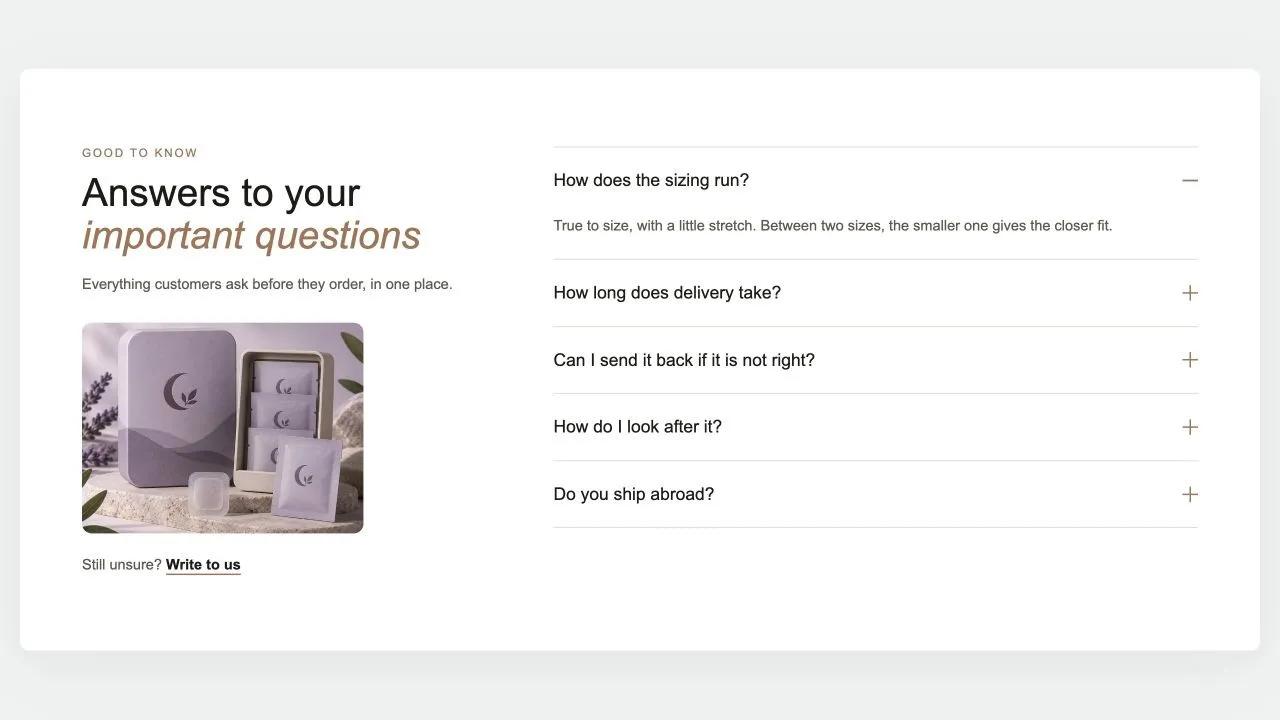 Free
Free FAQ Split 1
FAQ Sections
The heading, a word of reassurance, an optional photo and a contact link on one side; the questions on the other, opening one at a time with no script. The side column stays in view while the answers scroll, and every question is published as FAQ structured data for search engines.
View section →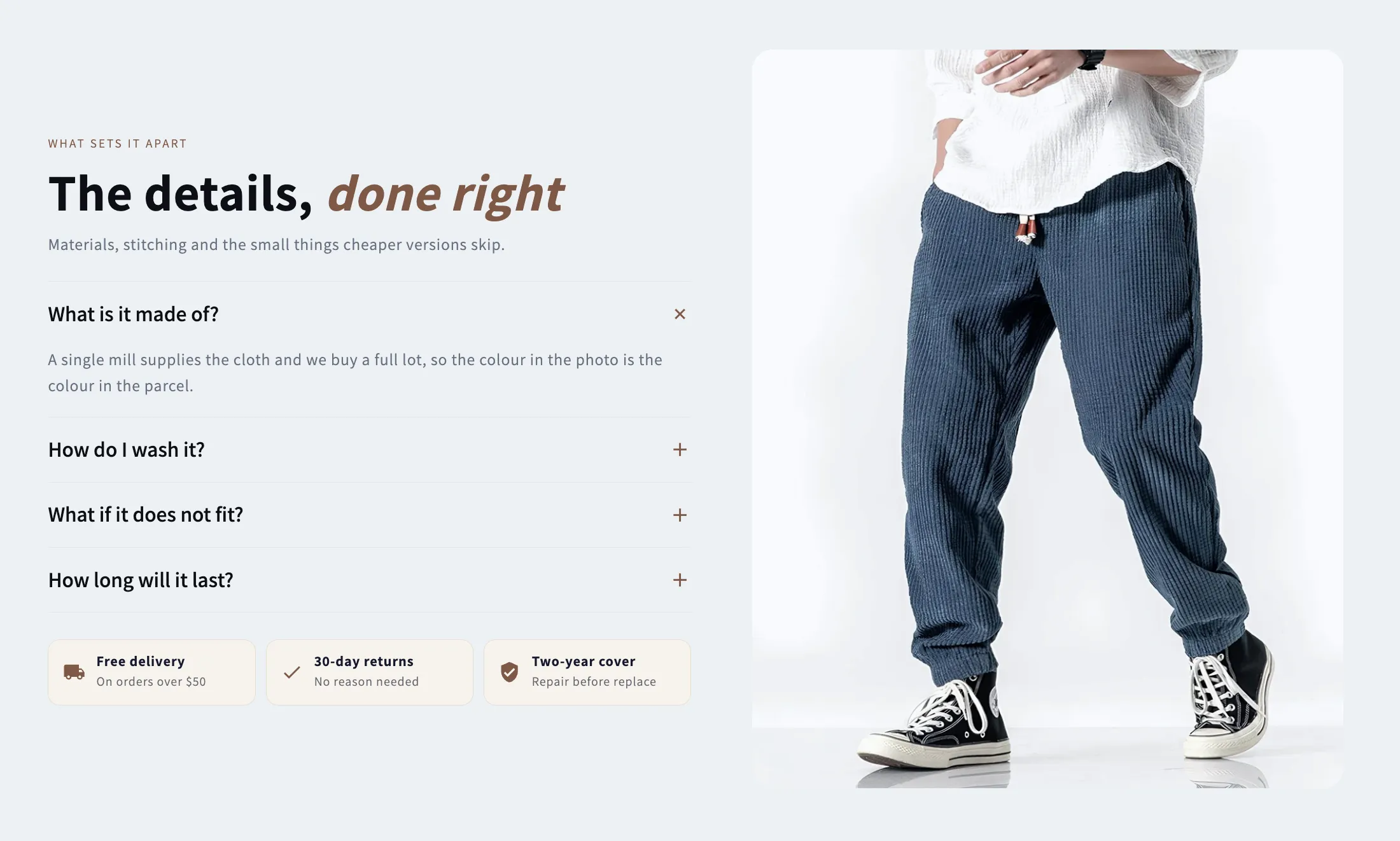 Free
Free Media Tabs
FAQ Sections
A picture beside an accordion of answers, with optional chips underneath for the offers that close a sale. Takes a separate mobile crop and a link on the image.
View section →Tip for Prestige: Keep it restrained: a single Testimonial Spotlight between two editorial blocks fits Prestige better than a wall of reviews.
How to add them to Prestige
- 1
Install Section Shop
Free from the Shopify App Store. Your Prestige setup is untouched.
- 2
Add the sections you need
Browse the library in the app and click Add — the section lands in your theme as a native file.
- 3
Customize in the editor
Open the Prestige theme editor — the new sections are in the picker, inheriting your fonts.
All 164 Prestige integration guides
One step-by-step guide per section — how it installs on Prestige, why it fits, and what to customize first.
Shoppable Video & Stories
- How to add Shoppable Stories to Prestige
- How to add Video Quick Shop to Prestige
- How to add Shoppable Slider to Prestige
- How to add Social Posts to Prestige
- How to add Social Reels to Prestige
- How to add Shoppable Reels to Prestige
- How to add Shoppable Video to Prestige
- How to add Video Stories to Prestige
- How to add Video Testimonials to Prestige
Collection Showcases
- How to add Collection Grid to Prestige
- How to add Shop Collections 7 to Prestige
- How to add Shop Collections 6 to Prestige
- How to add Shop Collections 1 to Prestige
- How to add Shop Collections 4 to Prestige
- How to add Shop Collections 5 to Prestige
- How to add Shop Collections 2 to Prestige
- How to add Shop Collections 3 to Prestige
- How to add Collection Circles to Prestige
Headers & Navigation
Hero & Banners
- How to add Newsletter Band 1 to Prestige
- How to add Coverflow 2 to Prestige
- How to add Coverflow 1 to Prestige
- How to add Slideshow 4 to Prestige
- How to add Slideshow 3 to Prestige
- How to add Slideshow 2 to Prestige
- How to add Slideshow 1 to Prestige
- How to add Hero Slider 1 to Prestige
- How to add Hero Review 2 to Prestige
- How to add Hero Review 1 to Prestige
- How to add Hero Stats 1 to Prestige
- How to add Hero Split 3 to Prestige
- How to add Hero Split 2 to Prestige
- How to add Hero Split 1 to Prestige
- How to add Hero Grid 1 to Prestige
- How to add Hero Image 3 to Prestige
- How to add Hero Image 2 to Prestige
- How to add Hero Image 1 to Prestige
- How to add Study Slider to Prestige
- How to add Hero 9 Banner to Prestige
- How to add Image Templates Banner to Prestige
- How to add Rotating Carousel Banner to Prestige
- How to add Split Content Banner to Prestige
- How to add Hero Banner to Prestige
- How to add Minimal Text Banner to Prestige
- How to add Gradient Overlay Banner to Prestige
- How to add Stacked Promotion Banner to Prestige
Image with Text
- How to add Stat Rings 1 to Prestige
- How to add Guarantee Band 1 to Prestige
- How to add Ingredient Tabs to Prestige
- How to add Selling Points to Prestige
- How to add Feature Rows to Prestige
- How to add Media Specs to Prestige
- How to add Editorial Story to Prestige
- How to add Image Text Benefits to Prestige
- How to add Image With Text Premium to Prestige
- How to add Image Text Zigzag to Prestige
- How to add Image Text Cards to Prestige
- How to add Image Text Overlay to Prestige
- How to add Image Text Split to Prestige
- How to add Designed with an Edge to Prestige
- How to add Explore Our Gallery to Prestige
Announcement Bars
- How to add Marquee 4 to Prestige
- How to add Marquee 3 to Prestige
- How to add Marquee 2 to Prestige
- How to add Marquee 1 to Prestige
- How to add Announcement Bar 5 to Prestige
- How to add Announcement Bar 4 to Prestige
- How to add Announcement Bar 3 to Prestige
- How to add Announcement Bar 2 to Prestige
- How to add Announcement Bar 1 to Prestige
- How to add 3D Flip Rotator to Prestige
- How to add Stock Ticker Pro to Prestige
- How to add Urgency Split Bar to Prestige
- How to add Neon Glow Marquee to Prestige
- How to add Gradient Marquee to Prestige
Countdown Timers
- How to add Countdown Drop 1 to Prestige
- How to add Countdown Sale 5 to Prestige
- How to add Countdown Sale 4 to Prestige
- How to add Countdown Sale 3 to Prestige
- How to add Countdown Sale 2 to Prestige
- How to add Countdown Sale 1 to Prestige
- How to add Countdown Media 1 to Prestige
- How to add Countdown Split 1 to Prestige
- How to add Countdown Hero 2 to Prestige
- How to add Countdown Bar 1 to Prestige
- How to add Countdown Product Launch to Prestige
- How to add Countdown Minimal to Prestige
- How to add Countdown Boxed to Prestige
- How to add Countdown Hero to Prestige
- How to add Countdown Banner to Prestige
Comparison Tables
- How to add Comparison Table 1 to Prestige
- How to add Product Comparison Table to Prestige
- How to add Dual Flow Comparison to Prestige
- How to add Competitor Comparison to Prestige
- How to add Before After Table to Prestige
- How to add Feature Comparison to Prestige
- How to add Pricing Table to Prestige
- How to add After Before Slider to Prestige
- How to add Discover the Difference to Prestige
FAQ Sections
Feature Highlights
Product Showcases
- How to add Product Callouts 1 to Prestige
- How to add Product Tiles 1 to Prestige
- How to add Product Banner 2 to Prestige
- How to add Product Banner 1 to Prestige
- How to add Product Slider 11 to Prestige
- How to add Product Slider 10 to Prestige
- How to add Product Slider 9 to Prestige
- How to add Product Slider 8 to Prestige
- How to add Product Slider 7 to Prestige
- How to add Product Grid 6 to Prestige
- How to add Product Grid 5 to Prestige
- How to add Product Grid 4 to Prestige
- How to add Product Story 1 to Prestige
- How to add Product Slider 6 to Prestige
- How to add Product Slider 5 to Prestige
- How to add Product Slider 4 to Prestige
- How to add Product Slider 3 to Prestige
- How to add Product Slider 2 to Prestige
- How to add Product Slider 1 to Prestige
- How to add Product Grid 3 to Prestige
- How to add Product Grid 2 to Prestige
- How to add Product Grid 1 to Prestige
- How to add Shop The Look 5 to Prestige
- How to add Shop The Look 4 to Prestige
- How to add Shop The Look 3 to Prestige
- How to add Shop The Look 2 to Prestige
- How to add Shop The Look 1 to Prestige
- How to add Product Ingredients to Prestige
- How to add Product Bundle to Prestige
- How to add Product Specifications to Prestige
- How to add Product Gallery to Prestige
- How to add Product Features to Prestige
Testimonials & Reviews
- How to add Review Cards 1 to Prestige
- How to add Reviews Summary 1 to Prestige
- How to add Photo Reviews 1 to Prestige
- How to add Media Proof to Prestige
- How to add Testimonial Spotlight to Prestige
- How to add Reviews Marquee to Prestige
- How to add Reviews Wall to Prestige
- How to add Testimonials Grid to Prestige
- How to add Testimonials Carousel to Prestige
Content & Extras
- How to add Team Grid 1 to Prestige
- How to add Blog Posts 1 to Prestige
- How to add Image Collage to Prestige
- How to add Back to Top to Prestige
- How to add Follow the Feed to Prestige
- How to add From Our Blog to Prestige
- How to add Smooth & Modern Design to Prestige
- How to add Follow Us on Instagram to Prestige
Prestige + Section Shop, in short
Does Section Shop work with the Prestige theme?
Yes. Prestige is an Online Store 2.0 theme, and Section Shop sections install as native OS 2.0 sections through Shopify's official theme API — the same mechanism Prestige's own sections use.
Will added sections match Prestige's design?
By default every Section Shop section inherits your theme's fonts, so it picks up Prestige's typography automatically. Colors, spacing and content are all editable in the theme editor.
Do I need to edit Prestige's code?
No. You install the app, click Add on a section, and it appears in your theme editor ready to customize. No Liquid, no CSS, no theme duplication required.