
Product Grid 3
Free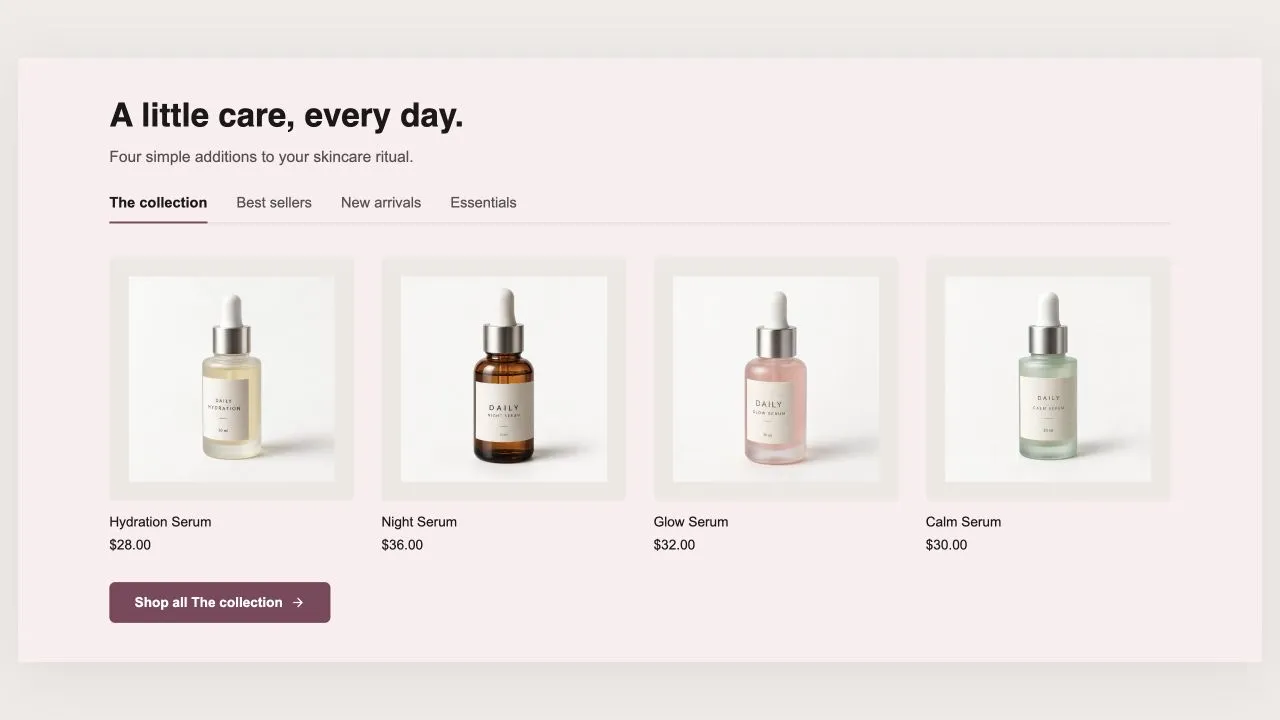
Full section details, tags and related sections: Product Grid 3 →
Why Product Grid 3 works on Refresh
Galleries, spec tables, bundles and ingredient breakdowns that give product pages the detail buyers look for. On Refresh, Product Grid 3 slots in like any built-in section: it inherits the theme's fonts by default, picks up your color choices in the editor, and lives alongside Refresh's own sections in the picker — prefixed "SShop:" so it's easy to spot.
- Theme
- Refresh (free)
- Section category
- Product Showcases
- Merchant installs
- 3
- Shows in editor as
- SShop:Product Grid 3
How to add Product Grid 3 to Refresh, step by step
- 1
Install Section Shop (free)
Add the app from the Shopify App Store. It's free, carries the Built for Shopify badge, and changes nothing in your Refresh setup until you add a section.
- 2
Find “Product Grid 3” in the library
Open the app and browse to it — it's in the Product Showcases category — or use search.
- 3
Click “Add to theme”
Section Shop writes the section into your Refresh theme through Shopify's official theme API, the same mechanism Refresh uses for its own sections.
- 4
Open the Refresh theme editor
In Online Store → Themes → Customize, click “Add section”: you'll find it as “SShop:Product Grid 3” in the picker.
- 5
Customize and save
Adjust text, images, colors and layout. Typography follows your Refresh font settings by default — or switch the section to any Shopify font. Hit Save and it's live.
Product Grid 3 on Refresh — FAQ
Does Product Grid 3 work with the Refresh theme?
Yes. Refresh is an Online Store 2.0 theme, and Product Grid 3 installs as a native OS 2.0 section through Shopify's official theme API. It appears in Refresh's theme editor as “SShop:Product Grid 3”, alongside the theme's own sections.
Will Product Grid 3 match Refresh's design?
By default the section inherits your theme's fonts, so it picks up Refresh's typography automatically. Colors, spacing, images and content are all editable in the theme editor — no CSS required.
Is Product Grid 3 free, and what if I uninstall Section Shop?
Product Grid 3 is free, like every section in the 164-section library. Once added it's a standard theme file: if you uninstall the app, the section stays in your Refresh theme and keeps working.
More product showcases for Refresh
Pairs well with Product Grid 3
 Free
Free Product Callouts 1
Product Showcases
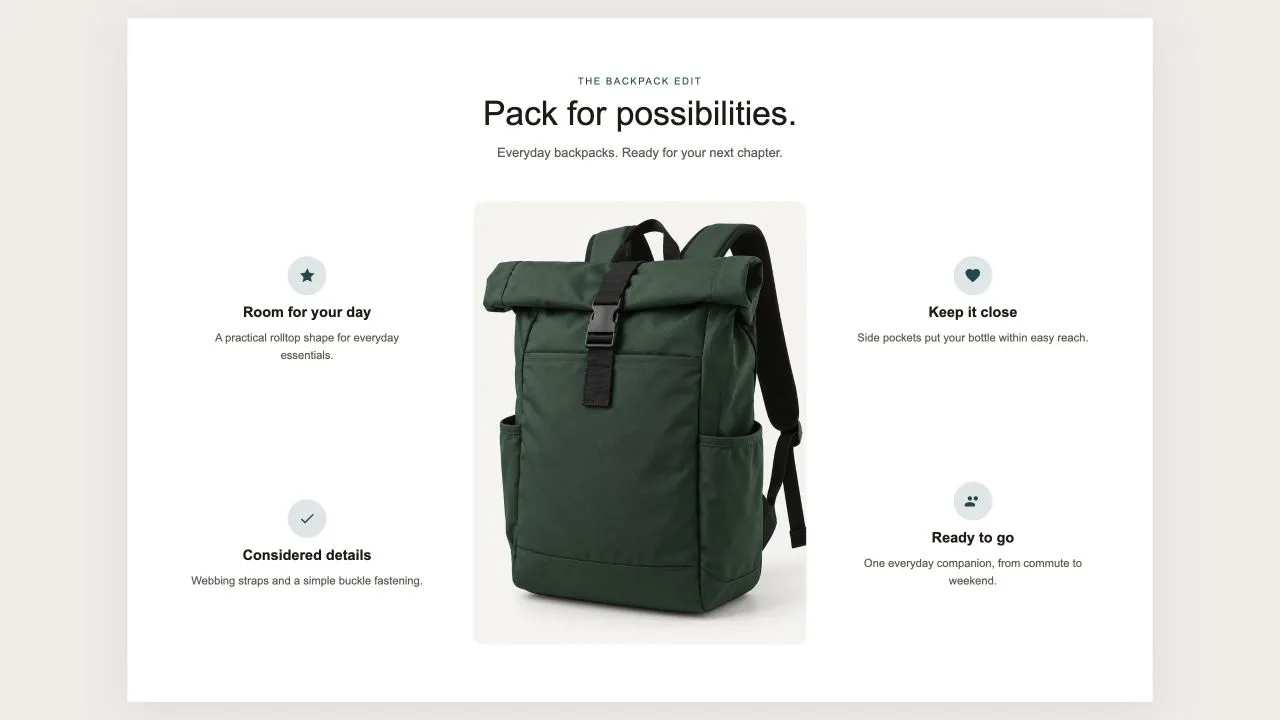
One photo in the middle and the reasons to buy set around it, half on each side, each with an icon from the shared set or your own, a title and a line of text. On a product page the photo can be the product's own until you pick another, and on phones the callouts fall into a tidy grid under the picture.
View section →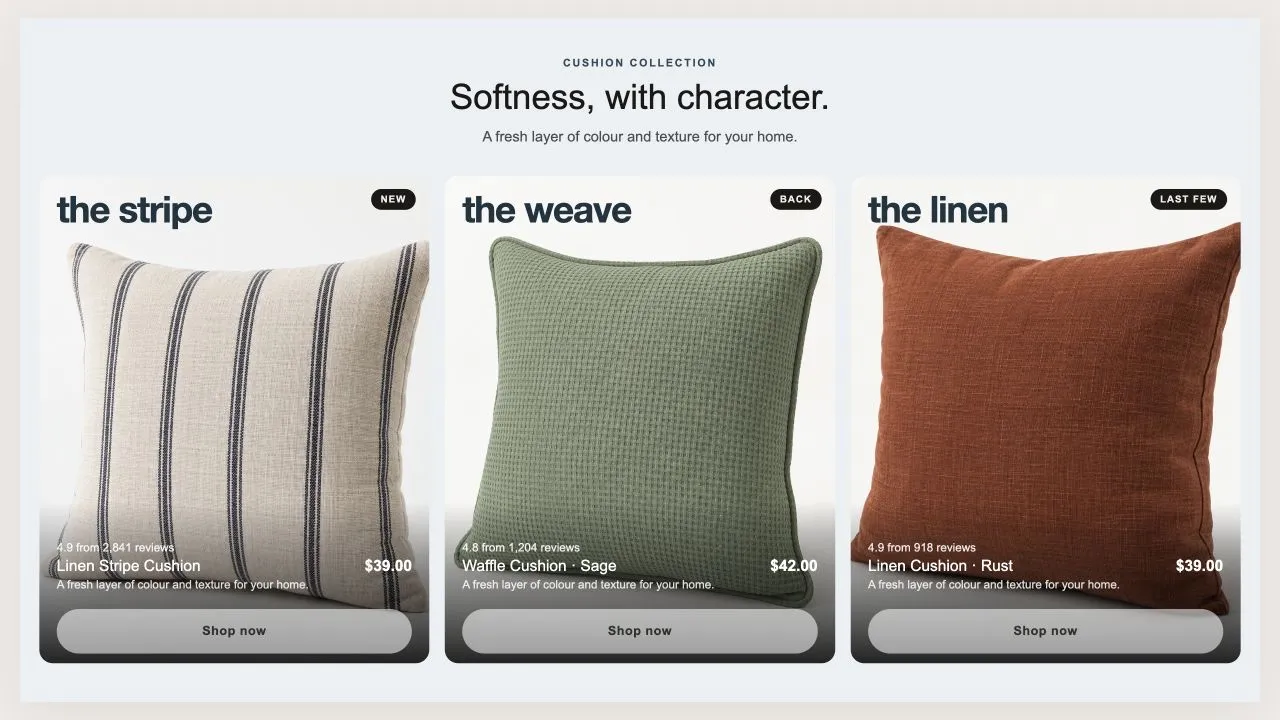 Free
Free Product Tiles 1
Product Showcases
Three tall tiles, each carrying one product under a big display word. The photo flips on hover when a second one is set, and the caption trades places with the buy button. On a phone the caption can sit on the photo or under it, and the text is contrast-checked for whichever you choose.
View section →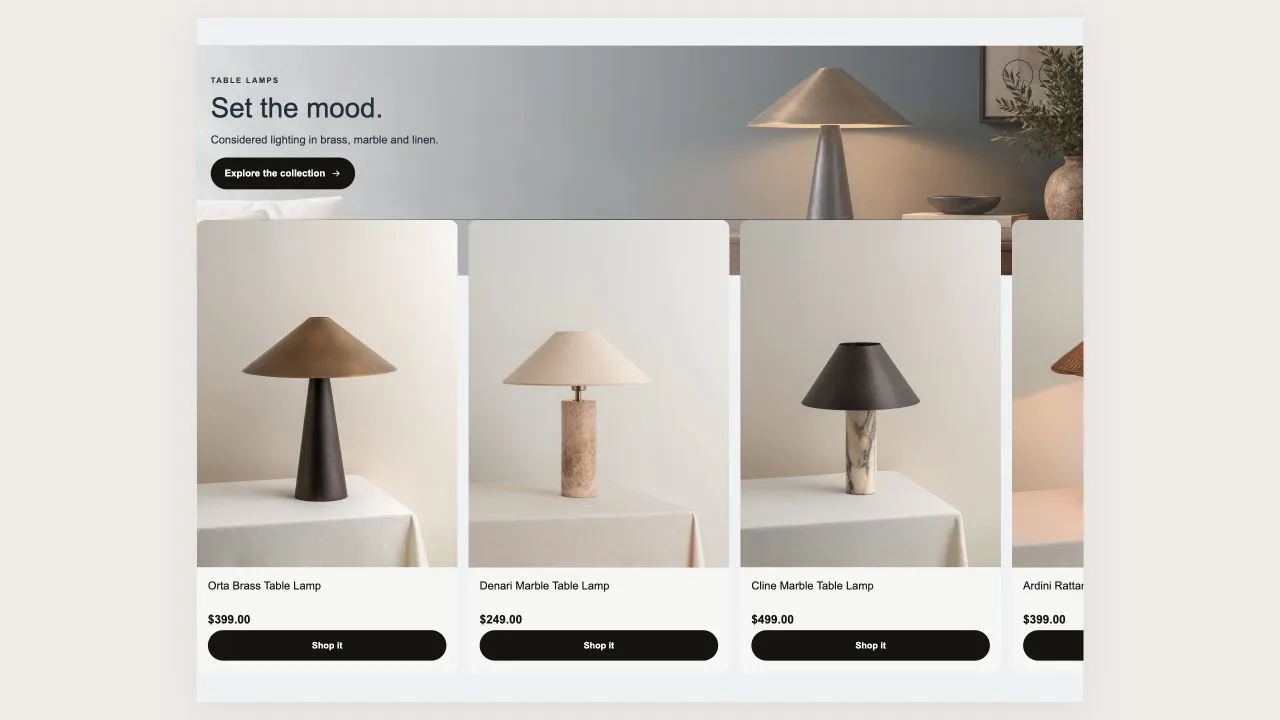 Free
Free Product Banner 2
Product Showcases
The restrained treatment of the same shape: a light banner, one button per card, no glow, and the arrows on the banner itself rather than in a strip under the row. A lit seam is drawn where the cards meet the banner, so the overlap reads as placed rather than cropped.
View section →