
Team Grid 1
Free
Full section details, tags and related sections: Team Grid 1 →
Why Team Grid 1 works on Refresh
Instagram feeds, blog highlights, galleries and handy utilities that round out your storefront. On Refresh, Team Grid 1 slots in like any built-in section: it inherits the theme's fonts by default, picks up your color choices in the editor, and lives alongside Refresh's own sections in the picker — prefixed "SShop:" so it's easy to spot.
- Theme
- Refresh (free)
- Section category
- Content & Extras
- Merchant installs
- 5
- Shows in editor as
- SShop:Team Grid 1
How to add Team Grid 1 to Refresh, step by step
- 1
Install Section Shop (free)
Add the app from the Shopify App Store. It's free, carries the Built for Shopify badge, and changes nothing in your Refresh setup until you add a section.
- 2
Find “Team Grid 1” in the library
Open the app and browse to it — it's in the Content & Extras category — or use search.
- 3
Click “Add to theme”
Section Shop writes the section into your Refresh theme through Shopify's official theme API, the same mechanism Refresh uses for its own sections.
- 4
Open the Refresh theme editor
In Online Store → Themes → Customize, click “Add section”: you'll find it as “SShop:Team Grid 1” in the picker.
- 5
Customize and save
Adjust text, images, colors and layout. Typography follows your Refresh font settings by default — or switch the section to any Shopify font. Hit Save and it's live.
Team Grid 1 on Refresh — FAQ
Does Team Grid 1 work with the Refresh theme?
Yes. Refresh is an Online Store 2.0 theme, and Team Grid 1 installs as a native OS 2.0 section through Shopify's official theme API. It appears in Refresh's theme editor as “SShop:Team Grid 1”, alongside the theme's own sections.
Will Team Grid 1 match Refresh's design?
By default the section inherits your theme's fonts, so it picks up Refresh's typography automatically. Colors, spacing, images and content are all editable in the theme editor — no CSS required.
Is Team Grid 1 free, and what if I uninstall Section Shop?
Team Grid 1 is free, like every section in the 164-section library. Once added it's a standard theme file: if you uninstall the app, the section stays in your Refresh theme and keeps working.
More content & extras for Refresh
Pairs well with Team Grid 1
 Free
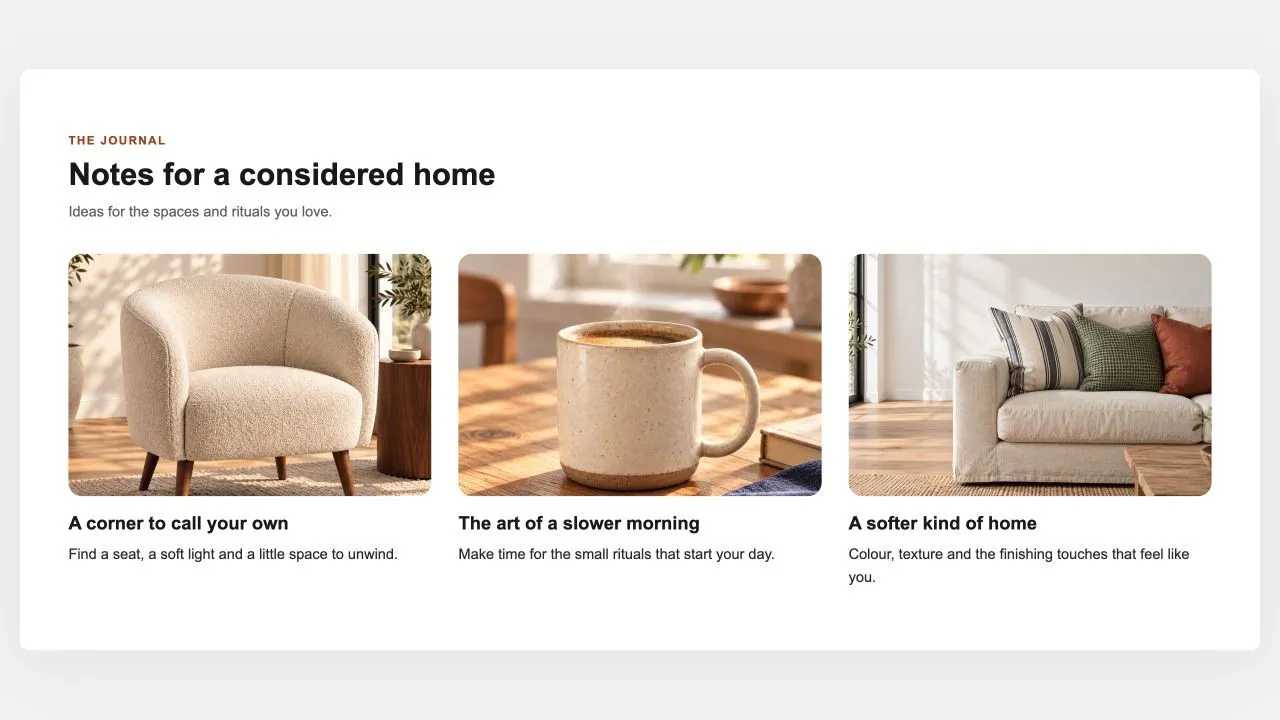
Free Blog Posts 1
Content & Extras
The latest posts of a blog as cards: photo, date, title, an excerpt and a read-more link, two to four per row. On an article page it leaves the current post out, so it reads as "read next".
View section →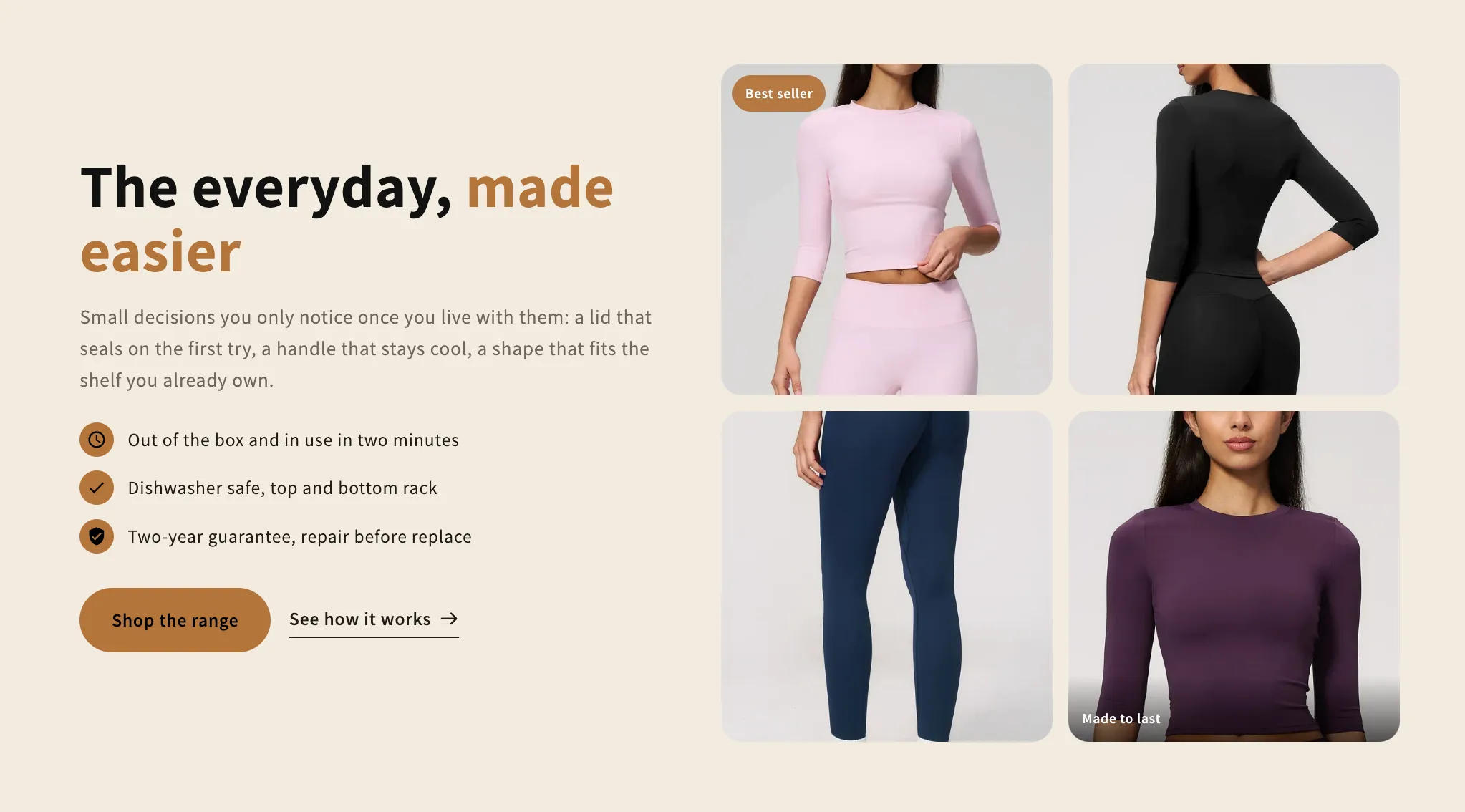 Free
Free Image Collage
16 installsContent & Extras
Copy and a checklist beside a grid of photos that rearranges itself around how many there are, from one to a full gallery. Every photo takes its own caption and link.
View section →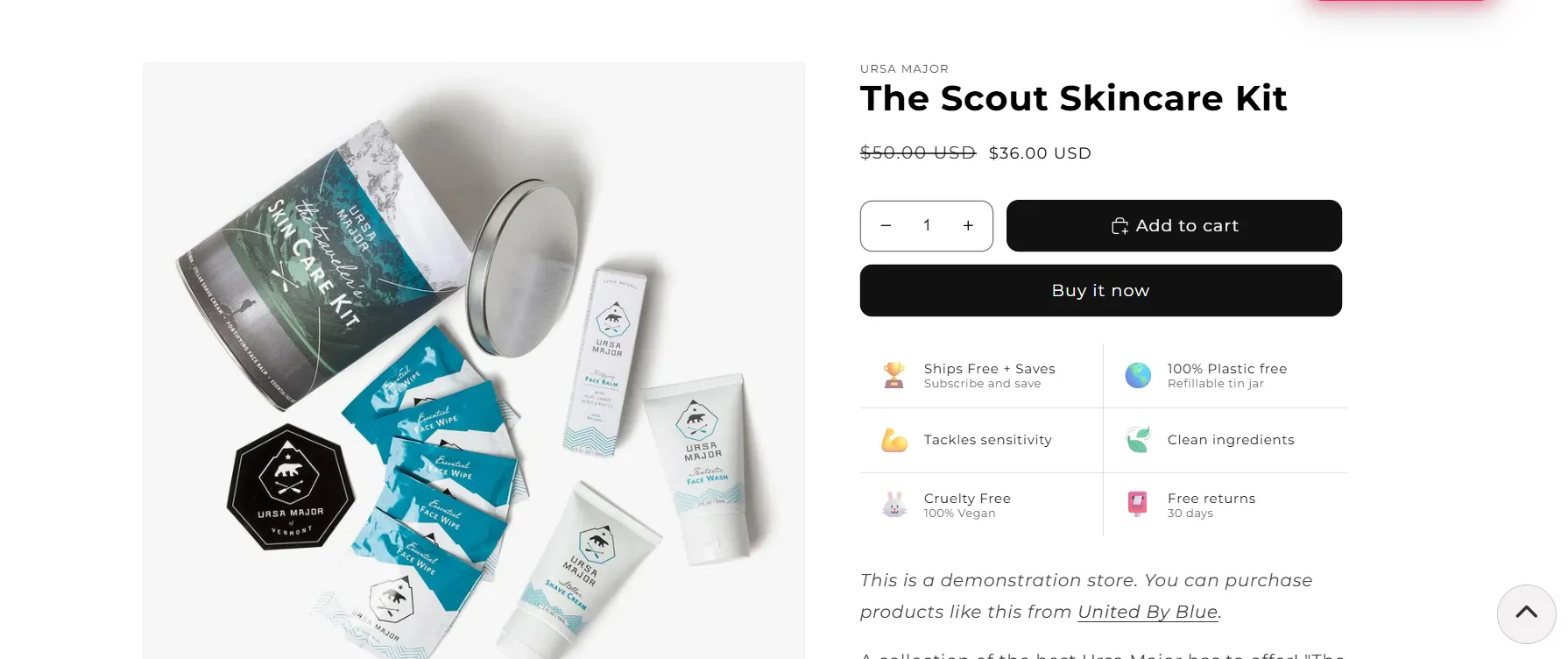 Free
Free Back to Top
22 installsContent & Extras
Enhance your store’s browsing experience with a simple “Back to Top” button. Smooth, user-friendly navigation helps customers explore your site with ease.
View section →