
Countdown Banner
Free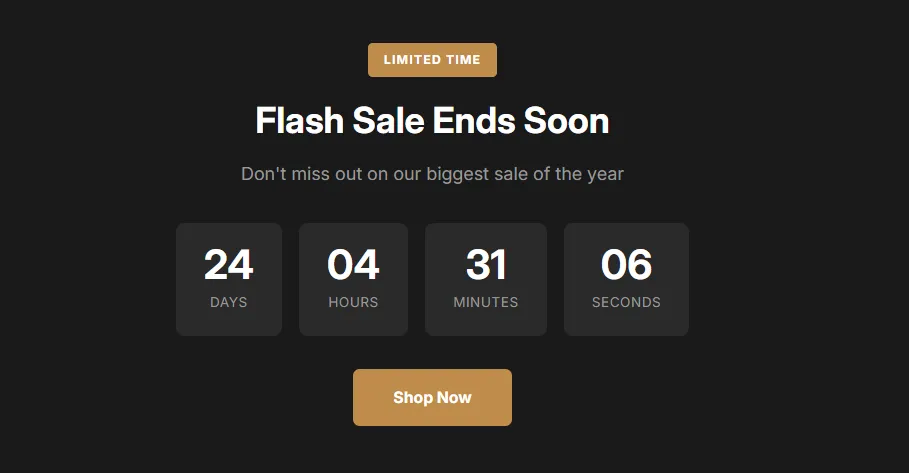
Full section details, tags and related sections: Countdown Banner →
Why Countdown Banner works on Studio
Deadline-driven sections for launches, drops and sales — hero countdowns, boxed timers and product-launch layouts. On Studio, Countdown Banner slots in like any built-in section: it inherits the theme's fonts by default, picks up your color choices in the editor, and lives alongside Studio's own sections in the picker — prefixed "SShop:" so it's easy to spot.
- Theme
- Studio (free)
- Section category
- Countdown Timers
- Merchant installs
- 11
- Shows in editor as
- SShop:Countdown Banner
How to add Countdown Banner to Studio, step by step
- 1
Install Section Shop (free)
Add the app from the Shopify App Store. It's free, carries the Built for Shopify badge, and changes nothing in your Studio setup until you add a section.
- 2
Find “Countdown Banner” in the library
Open the app and browse to it — it's in the Countdown Timers category — or use search.
- 3
Click “Add to theme”
Section Shop writes the section into your Studio theme through Shopify's official theme API, the same mechanism Studio uses for its own sections.
- 4
Open the Studio theme editor
In Online Store → Themes → Customize, click “Add section”: you'll find it as “SShop:Countdown Banner” in the picker.
- 5
Customize and save
Adjust text, images, colors and layout. Typography follows your Studio font settings by default — or switch the section to any Shopify font. Hit Save and it's live.
Countdown Banner on Studio — FAQ
Does Countdown Banner work with the Studio theme?
Yes. Studio is an Online Store 2.0 theme, and Countdown Banner installs as a native OS 2.0 section through Shopify's official theme API. It appears in Studio's theme editor as “SShop:Countdown Banner”, alongside the theme's own sections.
Will Countdown Banner match Studio's design?
By default the section inherits your theme's fonts, so it picks up Studio's typography automatically. Colors, spacing, images and content are all editable in the theme editor — no CSS required.
Is Countdown Banner free, and what if I uninstall Section Shop?
Countdown Banner is free, like every section in the 164-section library. Once added it's a standard theme file: if you uninstall the app, the section stays in your Studio theme and keeps working.
Add Countdown Banner to another theme
More countdown timers for Studio
Pairs well with Countdown Banner
 Free
Free Countdown Drop 1
Countdown Timers
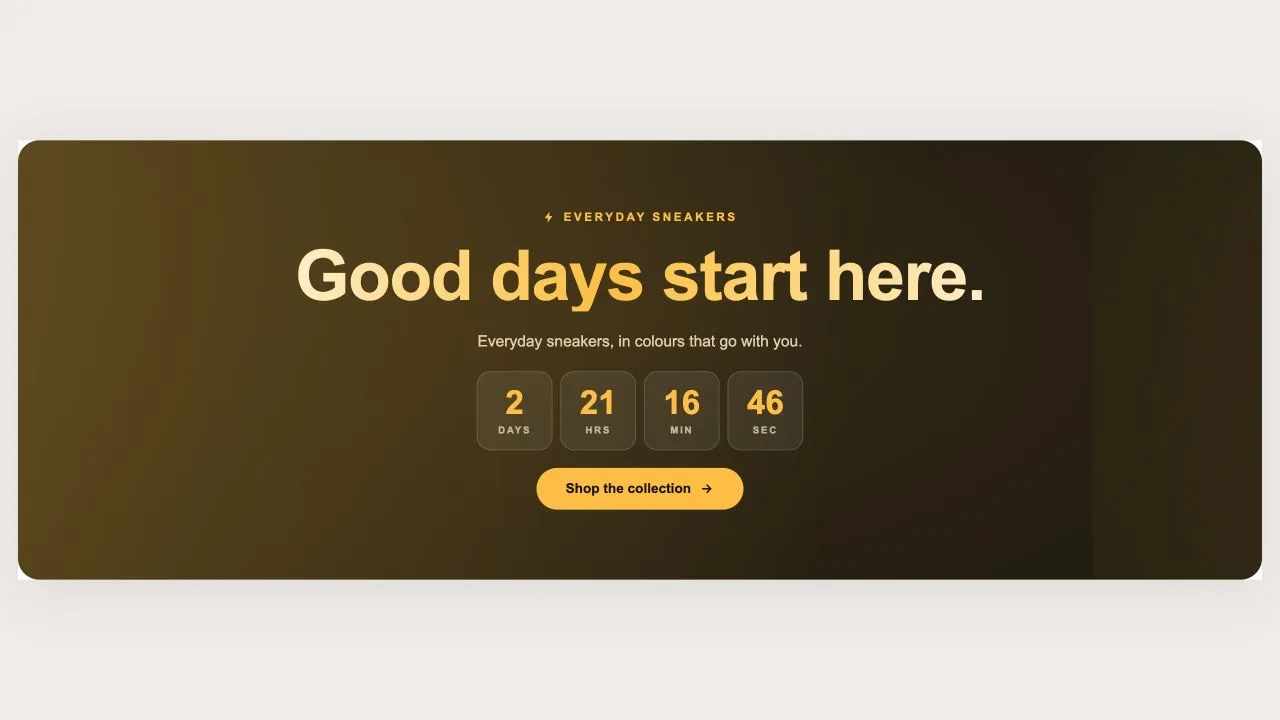
A holographic banner for a launch or a restock, running either as a countdown to a scheduled drop or as a pulsing live badge for one already open. The drop name is rendered as a holographic wordmark with a plain-colour fallback, so it is never invisible on an older browser.
View section →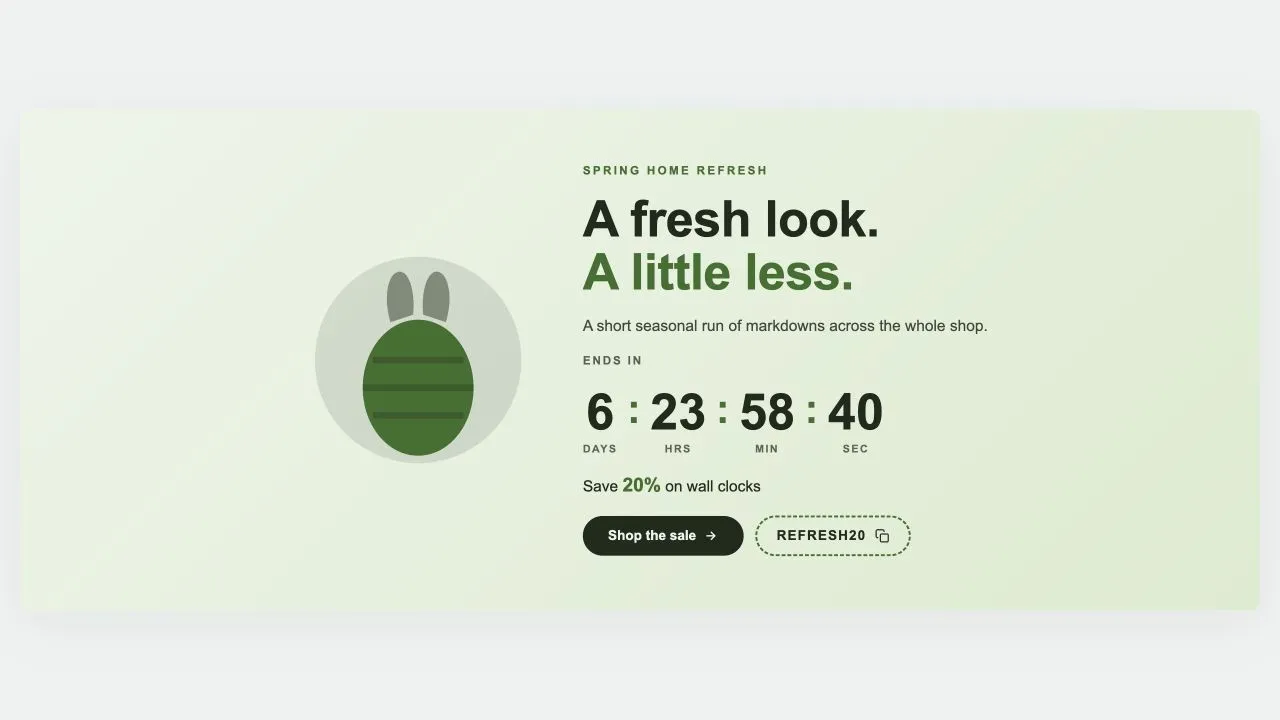 Free
Free Countdown Sale 5
Countdown Timers
A seasonal sale band with an illustration beside the wording: pick Easter, Mother's Day, Summer, Launch day or Lunar New Year and the artwork changes while everything else stays put. Every season is drawn inline in the band's own two colours, so switching costs no extra request and can never clash. Ships with five ready-made presets.
View section →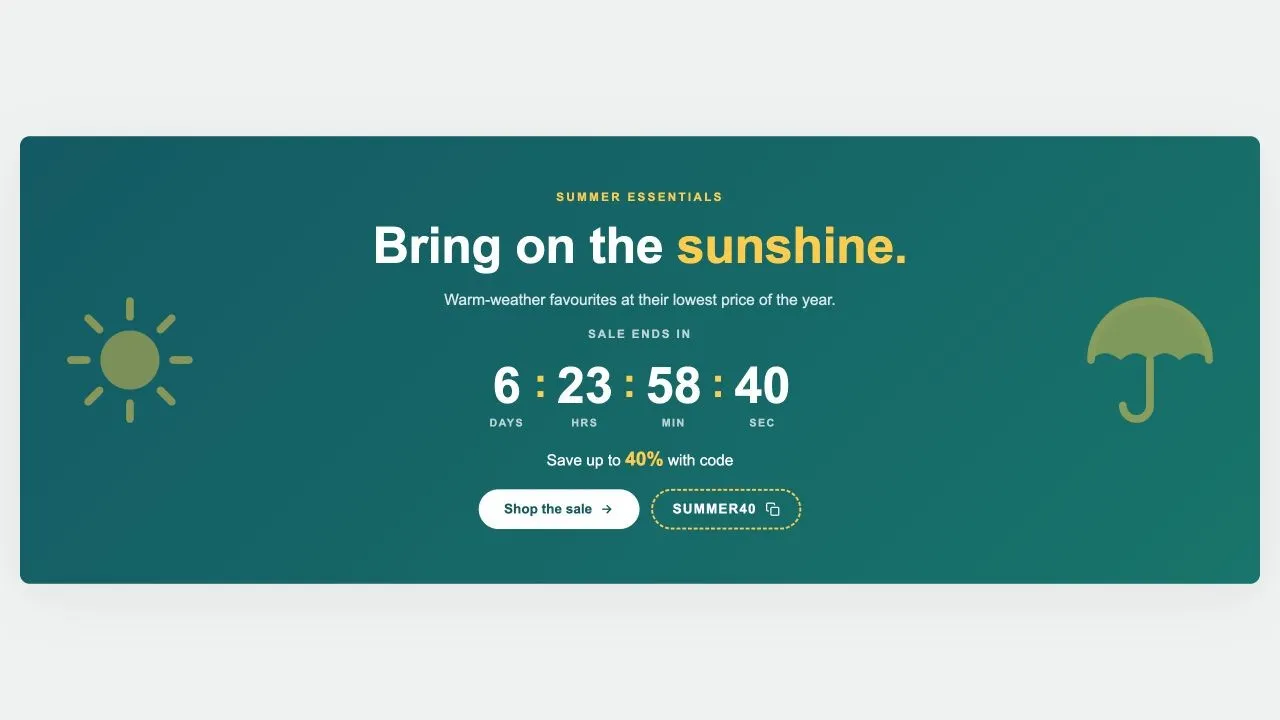 Free
Free Countdown Sale 4
Countdown Timers
A seasonal sale band flanked by two large emblems, from a sun and a parasol to a pumpkin and a bat. The emblems are inline SVG in the band's own highlight colour, fade back on tablets, and step aside entirely on phones where the wording needs the room.
View section →