
Discover the Difference
Free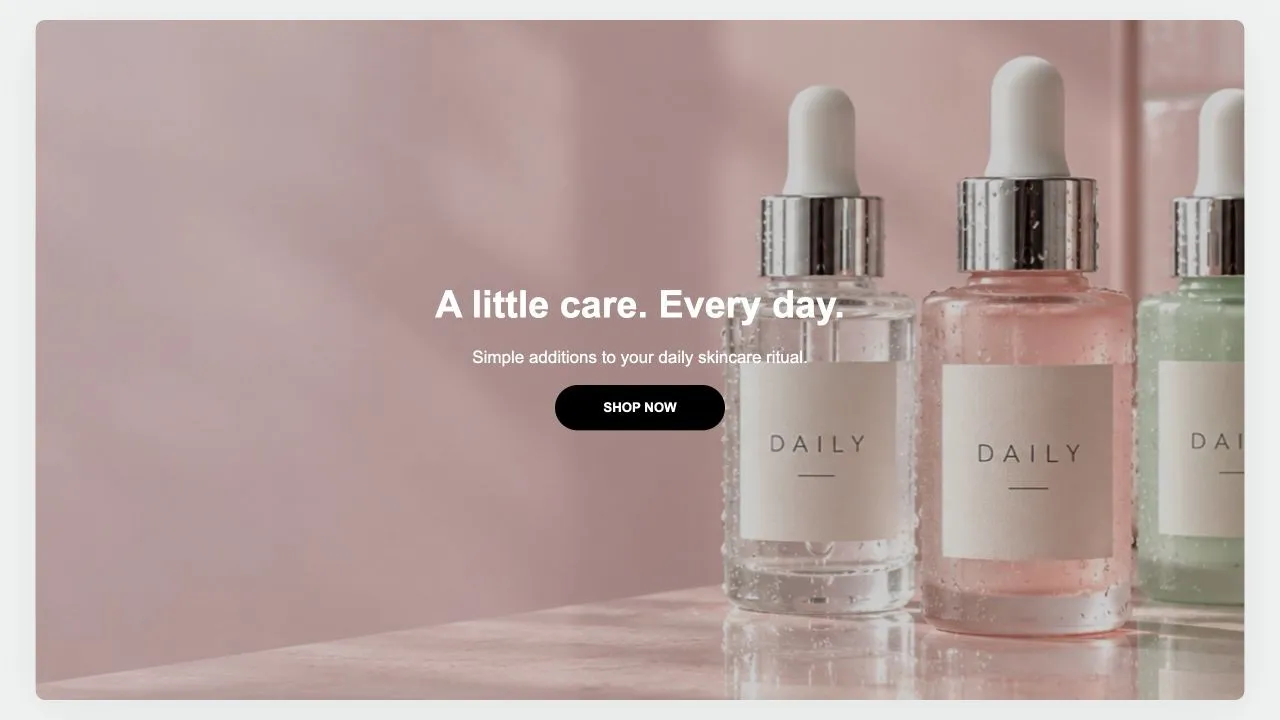
Full section details, tags and related sections: Discover the Difference →
Why Discover the Difference works on Studio
Us-vs-them tables, pricing grids and before/after layouts that answer objections and justify the purchase. On Studio, Discover the Difference slots in like any built-in section: it inherits the theme's fonts by default, picks up your color choices in the editor, and lives alongside Studio's own sections in the picker — prefixed "SShop:" so it's easy to spot.
- Theme
- Studio (free)
- Section category
- Comparison Tables
- Merchant installs
- 2
- Shows in editor as
- SShop:Discover the
How to add Discover the Difference to Studio, step by step
- 1
Install Section Shop (free)
Add the app from the Shopify App Store. It's free, carries the Built for Shopify badge, and changes nothing in your Studio setup until you add a section.
- 2
Find “Discover the Difference” in the library
Open the app and browse to it — it's in the Comparison Tables category — or use search.
- 3
Click “Add to theme”
Section Shop writes the section into your Studio theme through Shopify's official theme API, the same mechanism Studio uses for its own sections.
- 4
Open the Studio theme editor
In Online Store → Themes → Customize, click “Add section”: you'll find it as “SShop:Discover the” in the picker.
- 5
Customize and save
Adjust text, images, colors and layout. Typography follows your Studio font settings by default — or switch the section to any Shopify font. Hit Save and it's live.
Discover the Difference on Studio — FAQ
Does Discover the Difference work with the Studio theme?
Yes. Studio is an Online Store 2.0 theme, and Discover the Difference installs as a native OS 2.0 section through Shopify's official theme API. It appears in Studio's theme editor as “SShop:Discover the”, alongside the theme's own sections.
Will Discover the Difference match Studio's design?
By default the section inherits your theme's fonts, so it picks up Studio's typography automatically. Colors, spacing, images and content are all editable in the theme editor — no CSS required.
Is Discover the Difference free, and what if I uninstall Section Shop?
Discover the Difference is free, like every section in the 164-section library. Once added it's a standard theme file: if you uninstall the app, the section stays in your Studio theme and keeps working.
Add Discover the Difference to another theme
Pairs well with Discover the Difference
 Free
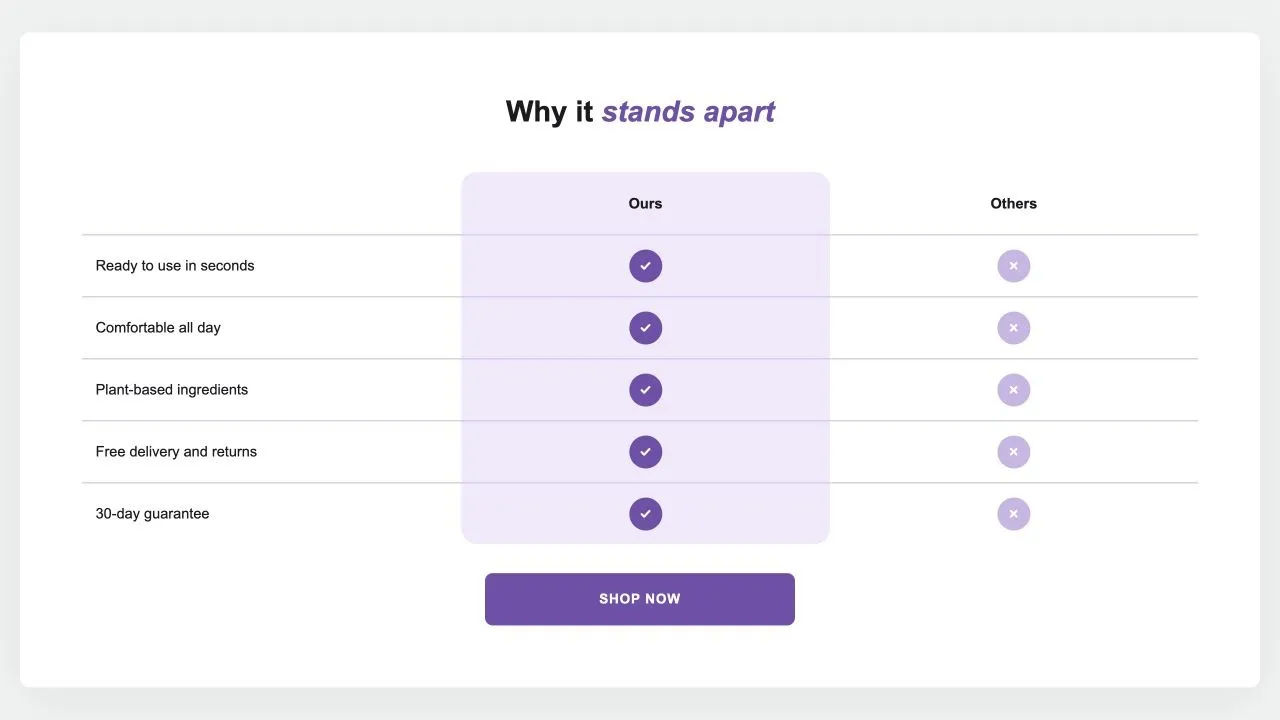
Free Comparison Table 1
24 installsComparison Tables
Your product against the alternatives in a real table: a tinted or framed column with a tick on every row, crosses or words for the others, an optional third column and a button underneath. {title} in the words becomes the product's title.
View section →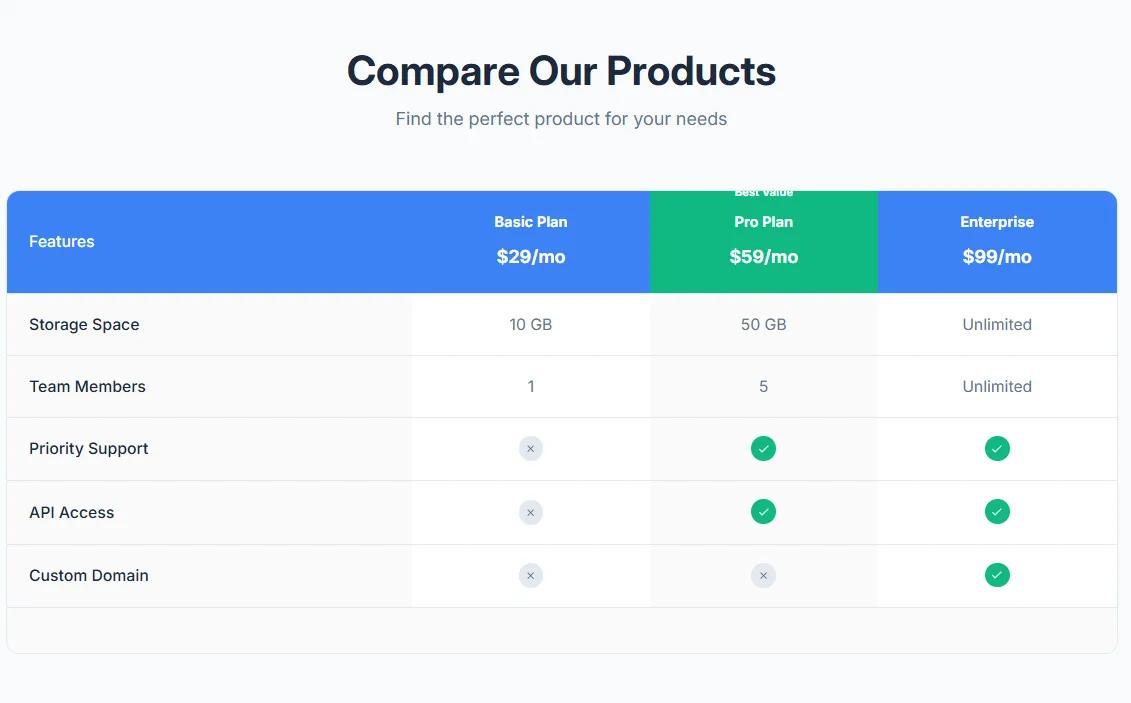 Free
Free Product Comparison Table
17 installsComparison Tables
Compare multiple products side by side with features table. Product images, prices, feature rows with check/X icons, highlighted recommended product, and mobile-responsive with sticky first column.
View section →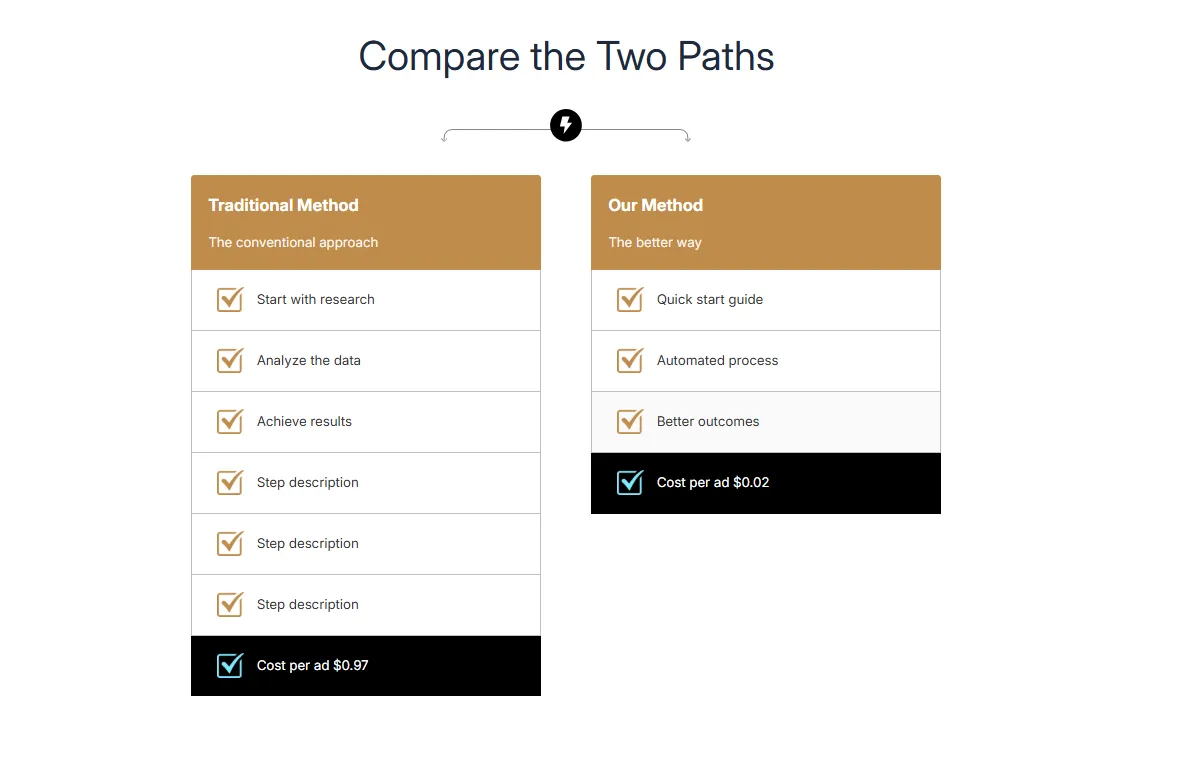 Free
Free Dual Flow Comparison
Comparison Tables
Compare two processes or paths side by side with step-by-step flow. Headers with images, numbered steps, and highlighted final result. Perfect for Old Way vs New Way comparisons.
View section →