
From Our Blog
Free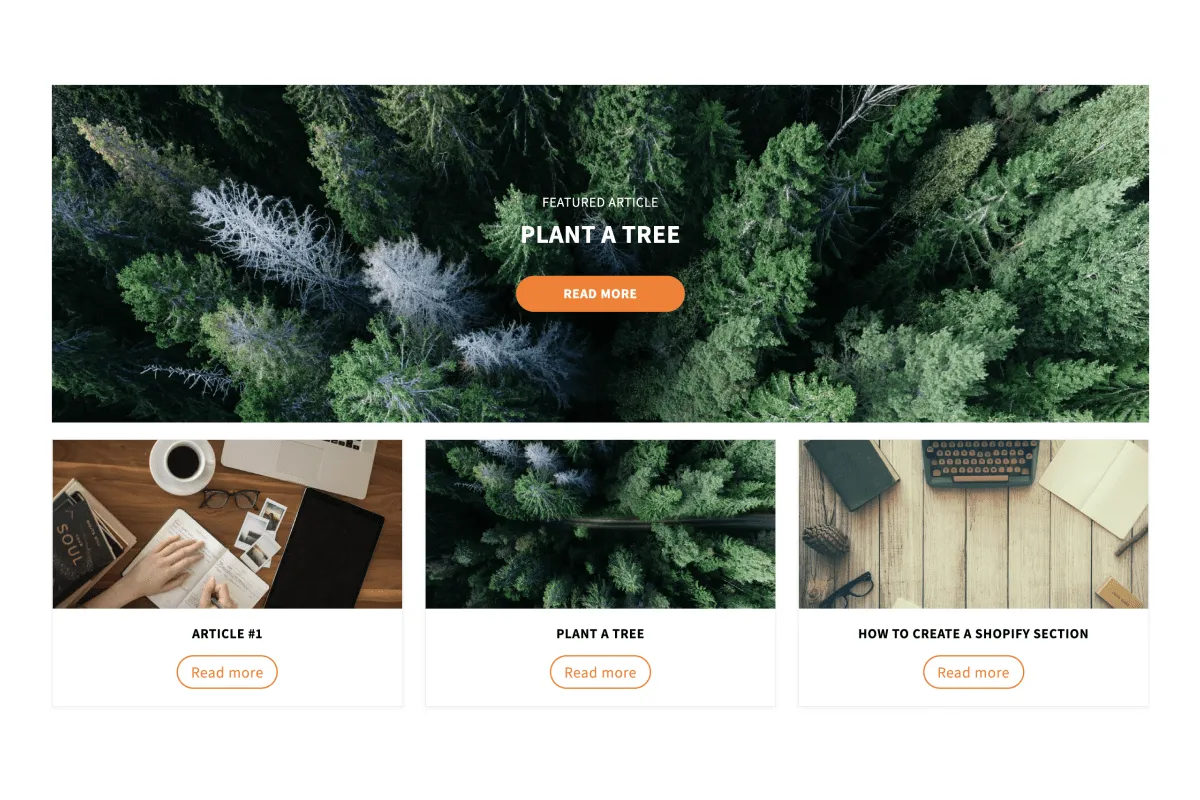
Full section details, tags and related sections: From Our Blog →
Why From Our Blog works on Studio
Instagram feeds, blog highlights, galleries and handy utilities that round out your storefront. For Studio specifically, this is one of the strongest matches in the library: limited social-proof options, and From Our Blog fills that gap while inheriting Studio's typography automatically, so it looks native from the first save. The polaroid-style gallery section gives Studio stores a personal, behind-the-scenes feel stock grids can’t.
- Theme
- Studio (free)
- Section category
- Content & Extras
- Merchant installs
- 14
- Shows in editor as
- SShop:From Our Blog
How to add From Our Blog to Studio, step by step
- 1
Install Section Shop (free)
Add the app from the Shopify App Store. It's free, carries the Built for Shopify badge, and changes nothing in your Studio setup until you add a section.
- 2
Find “From Our Blog” in the library
Open the app and browse to it — it's in the Content & Extras category — or use search.
- 3
Click “Add to theme”
Section Shop writes the section into your Studio theme through Shopify's official theme API, the same mechanism Studio uses for its own sections.
- 4
Open the Studio theme editor
In Online Store → Themes → Customize, click “Add section”: you'll find it as “SShop:From Our Blog” in the picker.
- 5
Customize and save
Adjust text, images, colors and layout. Typography follows your Studio font settings by default — or switch the section to any Shopify font. Hit Save and it's live.
From Our Blog on Studio — FAQ
Does From Our Blog work with the Studio theme?
Yes. Studio is an Online Store 2.0 theme, and From Our Blog installs as a native OS 2.0 section through Shopify's official theme API. It appears in Studio's theme editor as “SShop:From Our Blog”, alongside the theme's own sections.
Will From Our Blog match Studio's design?
By default the section inherits your theme's fonts, so it picks up Studio's typography automatically. Colors, spacing, images and content are all editable in the theme editor — no CSS required.
Is From Our Blog free, and what if I uninstall Section Shop?
From Our Blog is free, like every section in the 164-section library. Once added it's a standard theme file: if you uninstall the app, the section stays in your Studio theme and keeps working.
More content & extras for Studio
Pairs well with From Our Blog
 Free
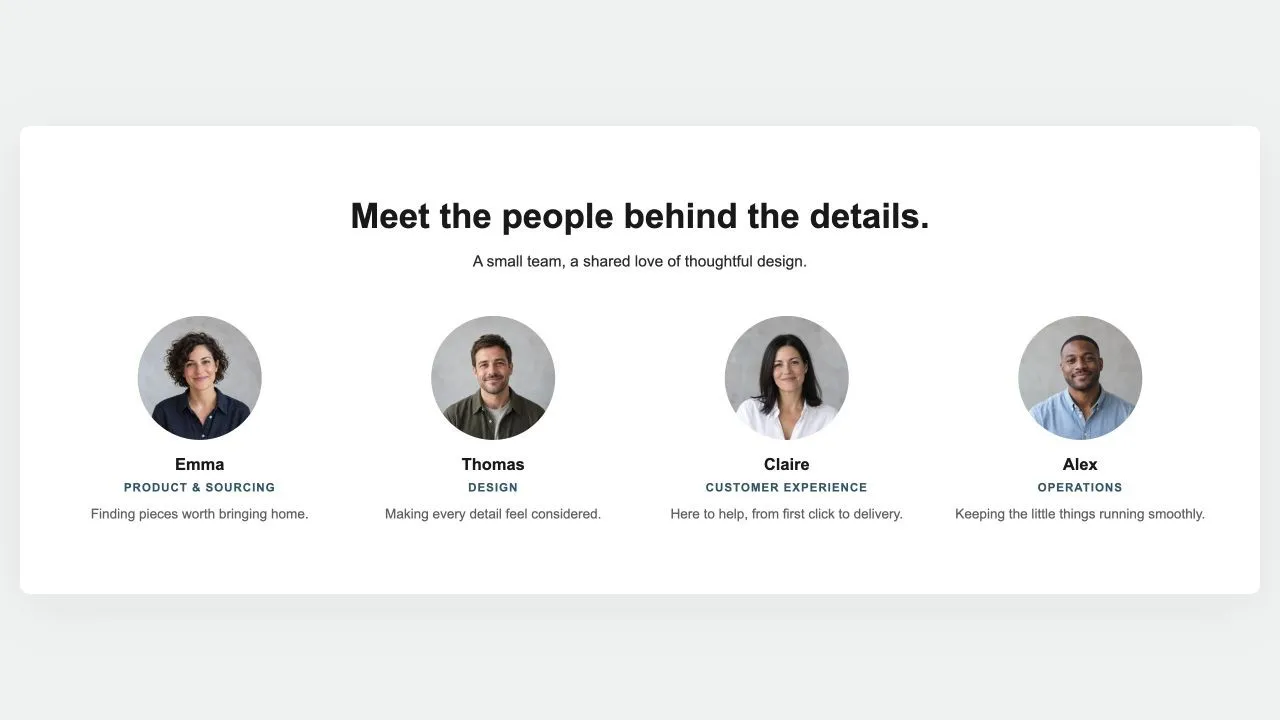
Free Team Grid 1
Content & Extras
The people behind the shop: a heading, a few lines that turn "we" into faces, then the team in a grid with a round photo, a first name, a role and one line each. Three or four per row, the last row centred.
View section →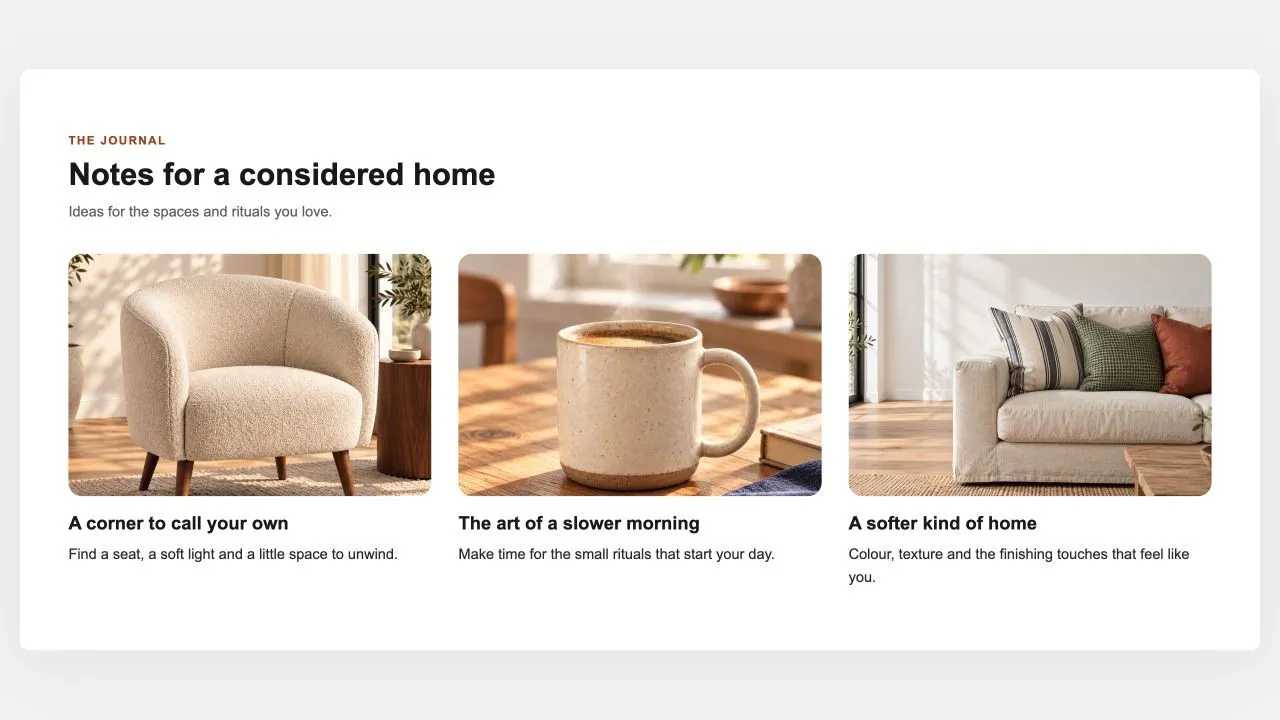 Free
Free Blog Posts 1
Content & Extras
The latest posts of a blog as cards: photo, date, title, an excerpt and a read-more link, two to four per row. On an article page it leaves the current post out, so it reads as "read next".
View section →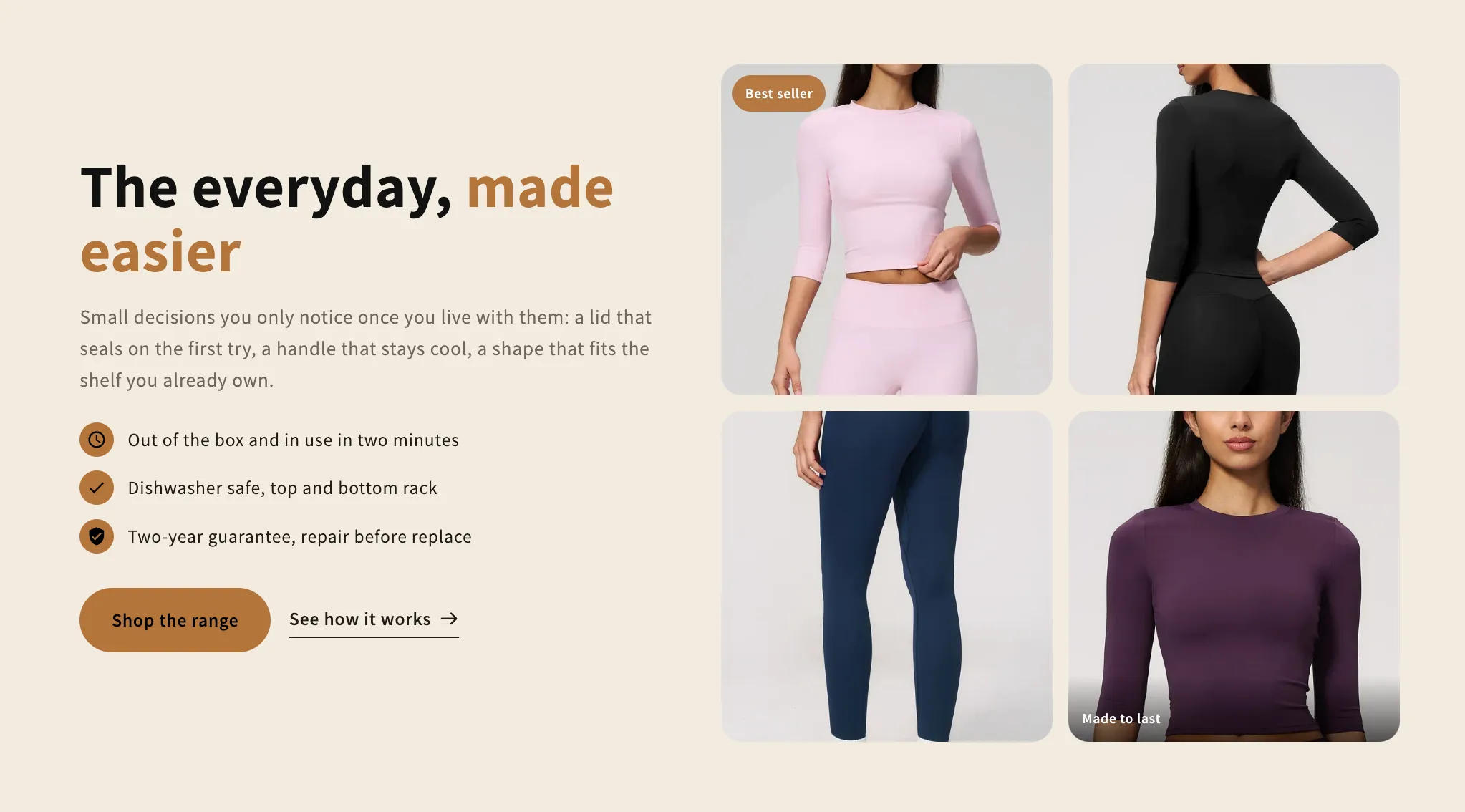 Free
Free Image Collage
16 installsContent & Extras
Copy and a checklist beside a grid of photos that rearranges itself around how many there are, from one to a full gallery. Every photo takes its own caption and link.
View section →