
Media Specs
Free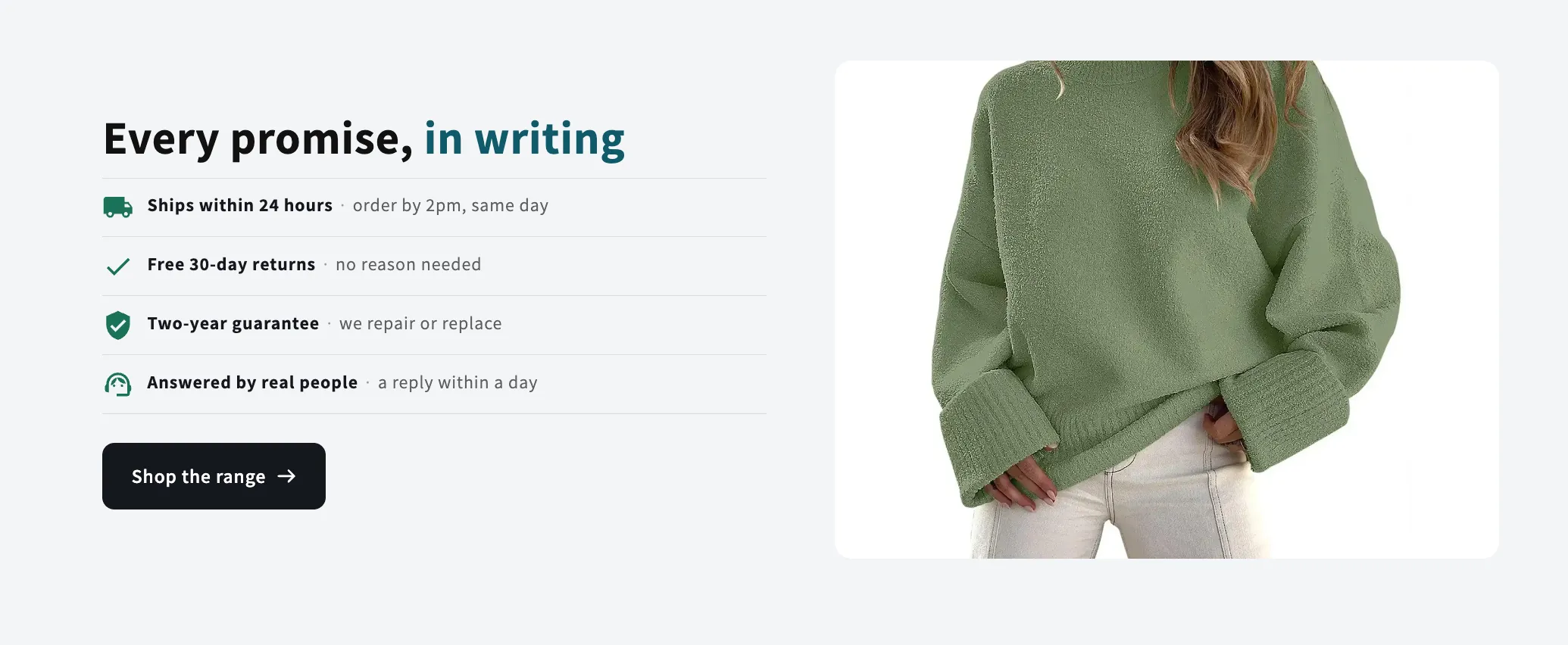
Full section details, tags and related sections: Media Specs →
Why Media Specs works on Studio
Story-telling layouts pairing visuals with copy — splits, overlays, zigzags and card grids for brand and product stories. For Studio specifically, this is one of the strongest matches in the library: limited social-proof options, and Media Specs fills that gap while inheriting Studio's typography automatically, so it looks native from the first save. The polaroid-style gallery section gives Studio stores a personal, behind-the-scenes feel stock grids can’t.
- Theme
- Studio (free)
- Section category
- Image with Text
- Merchant installs
- 10
- Shows in editor as
- SShop:Media Specs
How to add Media Specs to Studio, step by step
- 1
Install Section Shop (free)
Add the app from the Shopify App Store. It's free, carries the Built for Shopify badge, and changes nothing in your Studio setup until you add a section.
- 2
Find “Media Specs” in the library
Open the app and browse to it — it's in the Image with Text category — or use search.
- 3
Click “Add to theme”
Section Shop writes the section into your Studio theme through Shopify's official theme API, the same mechanism Studio uses for its own sections.
- 4
Open the Studio theme editor
In Online Store → Themes → Customize, click “Add section”: you'll find it as “SShop:Media Specs” in the picker.
- 5
Customize and save
Adjust text, images, colors and layout. Typography follows your Studio font settings by default — or switch the section to any Shopify font. Hit Save and it's live.
Media Specs on Studio — FAQ
Does Media Specs work with the Studio theme?
Yes. Studio is an Online Store 2.0 theme, and Media Specs installs as a native OS 2.0 section through Shopify's official theme API. It appears in Studio's theme editor as “SShop:Media Specs”, alongside the theme's own sections.
Will Media Specs match Studio's design?
By default the section inherits your theme's fonts, so it picks up Studio's typography automatically. Colors, spacing, images and content are all editable in the theme editor — no CSS required.
Is Media Specs free, and what if I uninstall Section Shop?
Media Specs is free, like every section in the 164-section library. Once added it's a standard theme file: if you uninstall the app, the section stays in your Studio theme and keeps working.
More image with text for Studio
Pairs well with Media Specs
 Free
Free Stat Rings 1
Image with Text
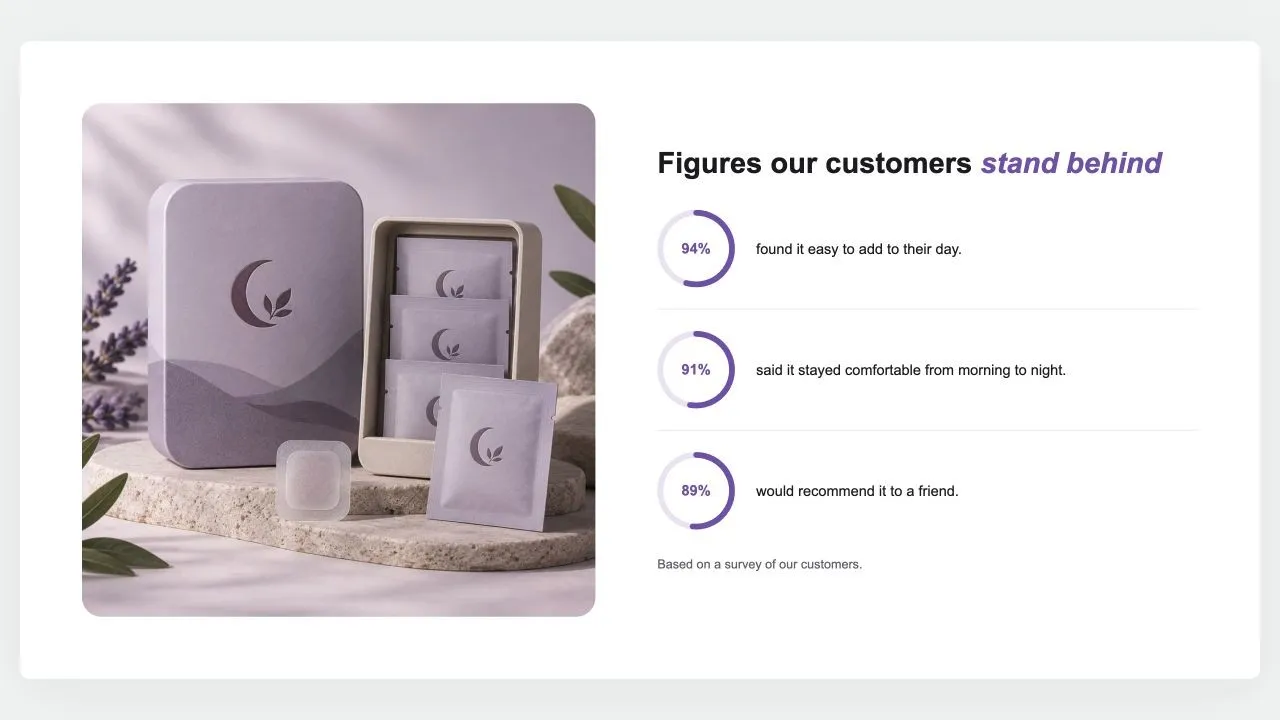
A photo beside a heading and up to six figures, each a ring filled to its percentage with the number inside and a line of text. The rings fill as they scroll into view, and a note says where the figures come from.
View section →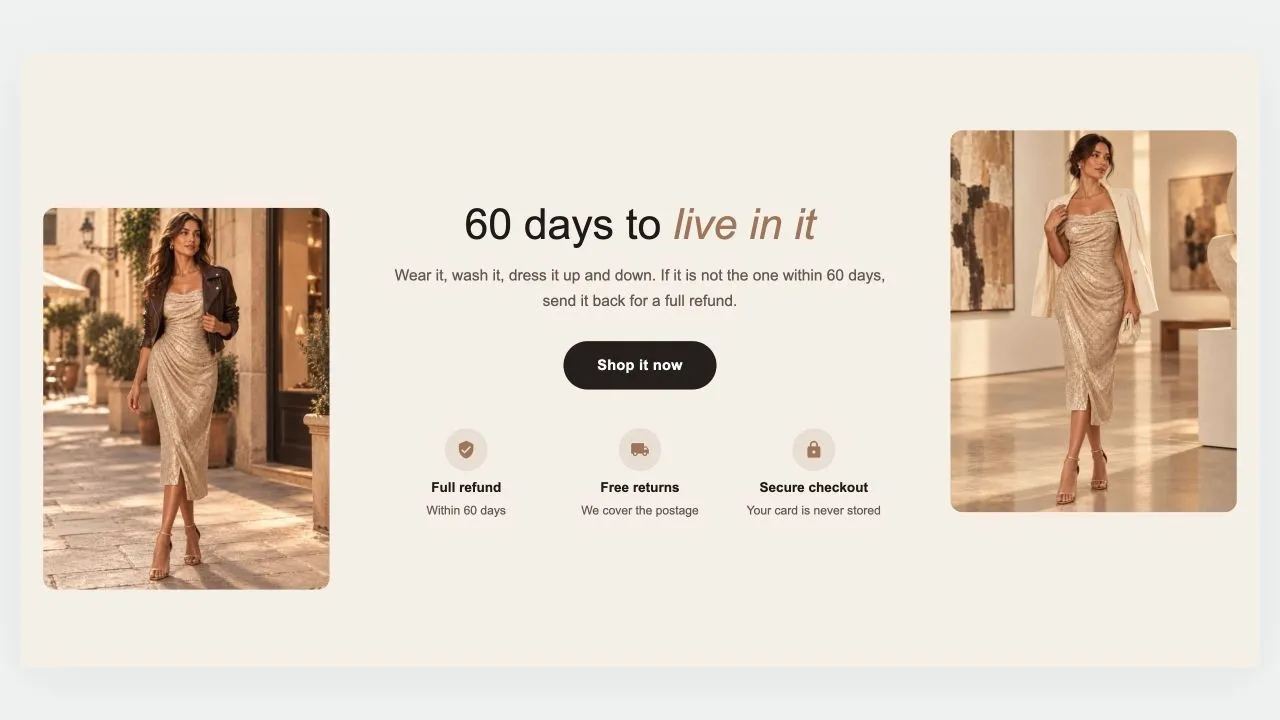 Free
Free Guarantee Band 1
Image with Text
A guarantee told between two photos: a heading, a short promise and a button in the middle, a row of reassurances underneath, and a picture on each side, staggered for a little movement. On phones the photos sit side by side above the words, or step aside altogether.
View section →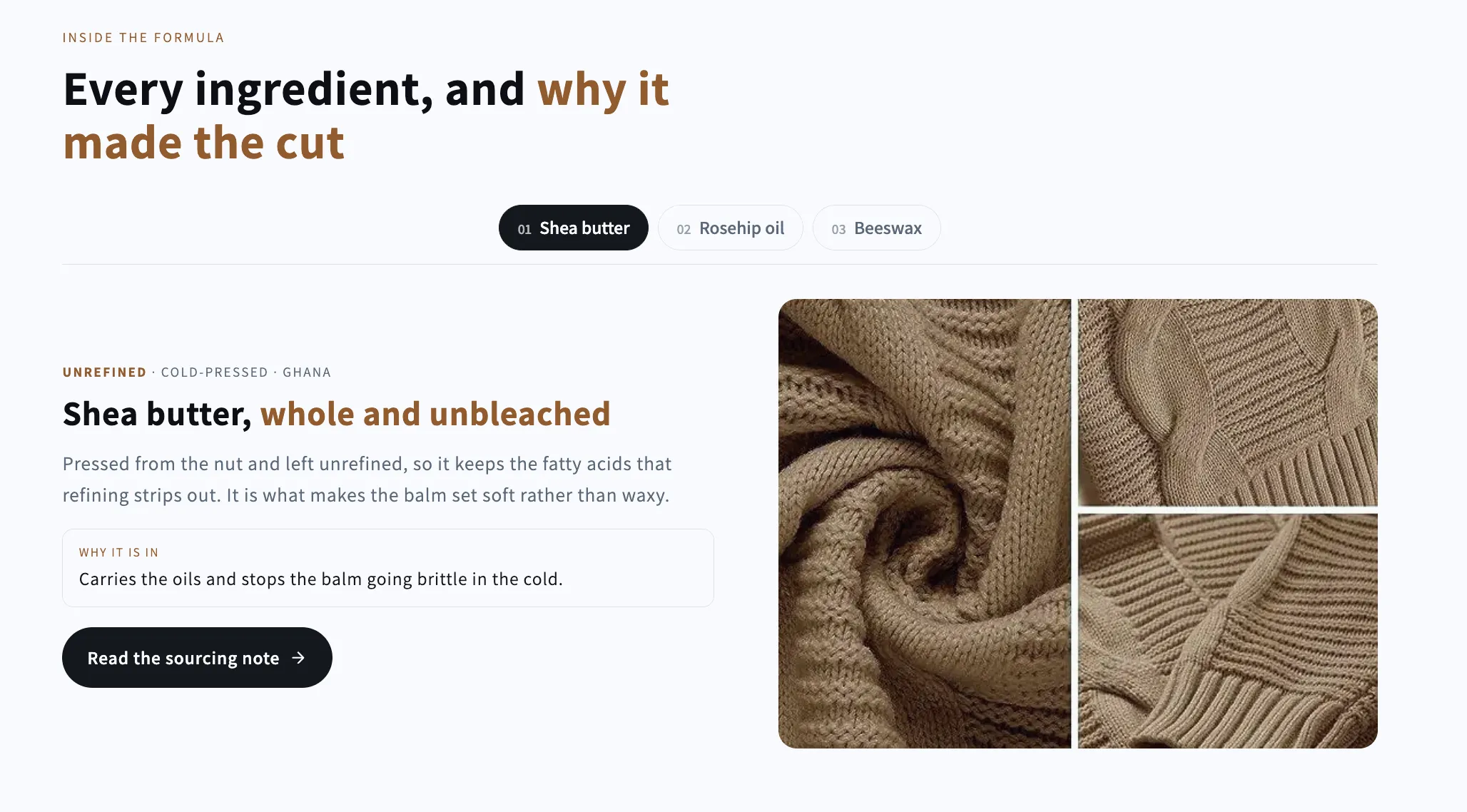 Free
Free Ingredient Tabs
Image with Text
A tab bar that swaps both the picture and the copy: one panel per ingredient, material or step, each with its own credential line, reason and link. Full keyboard navigation.
View section →