
Slideshow 3
Free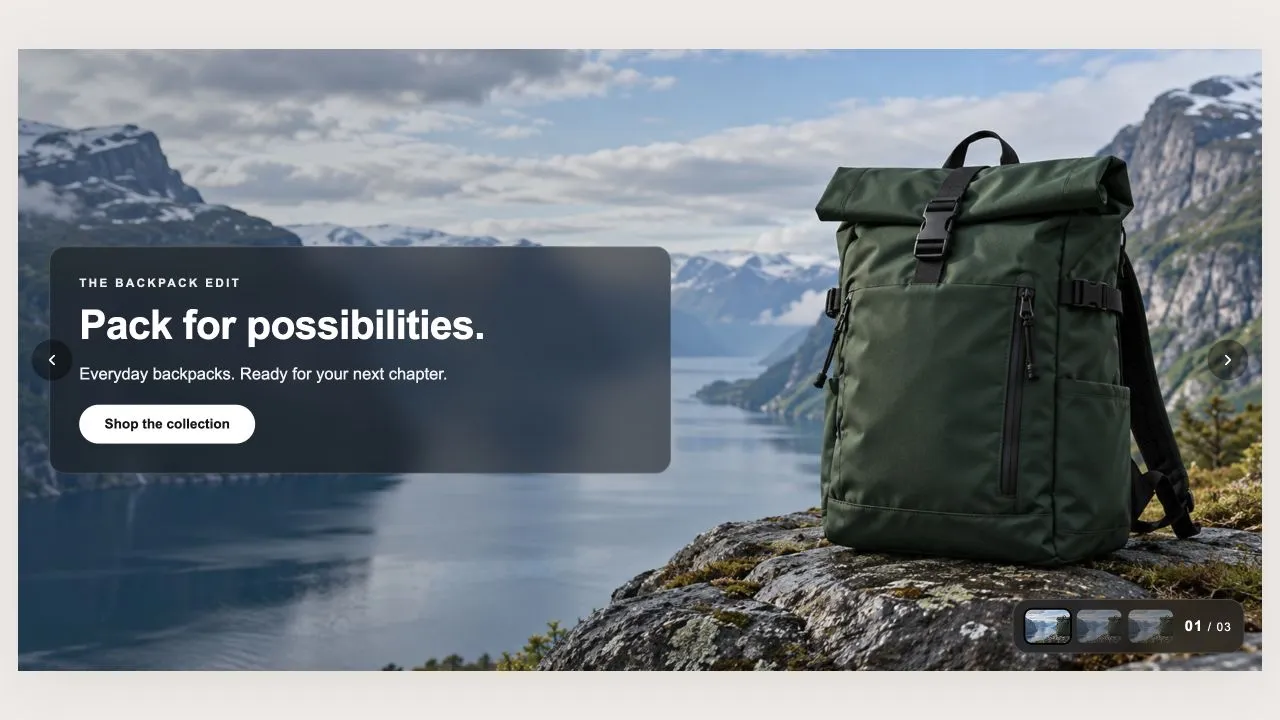
Full section details, tags and related sections: Slideshow 3 →
Why Slideshow 3 works on Studio
First-impression sections: hero layouts, promotional banners and rotating showcases that make visitors stop scrolling. For Studio specifically, this is one of the strongest matches in the library: limited social-proof options, and Slideshow 3 fills that gap while inheriting Studio's typography automatically, so it looks native from the first save. The polaroid-style gallery section gives Studio stores a personal, behind-the-scenes feel stock grids can’t.
- Theme
- Studio (free)
- Section category
- Hero & Banners
- Merchant installs
- 7
- Shows in editor as
- SShop:Slideshow 3
How to add Slideshow 3 to Studio, step by step
- 1
Install Section Shop (free)
Add the app from the Shopify App Store. It's free, carries the Built for Shopify badge, and changes nothing in your Studio setup until you add a section.
- 2
Find “Slideshow 3” in the library
Open the app and browse to it — it's in the Hero & Banners category — or use search.
- 3
Click “Add to theme”
Section Shop writes the section into your Studio theme through Shopify's official theme API, the same mechanism Studio uses for its own sections.
- 4
Open the Studio theme editor
In Online Store → Themes → Customize, click “Add section”: you'll find it as “SShop:Slideshow 3” in the picker.
- 5
Customize and save
Adjust text, images, colors and layout. Typography follows your Studio font settings by default — or switch the section to any Shopify font. Hit Save and it's live.
Slideshow 3 on Studio — FAQ
Does Slideshow 3 work with the Studio theme?
Yes. Studio is an Online Store 2.0 theme, and Slideshow 3 installs as a native OS 2.0 section through Shopify's official theme API. It appears in Studio's theme editor as “SShop:Slideshow 3”, alongside the theme's own sections.
Will Slideshow 3 match Studio's design?
By default the section inherits your theme's fonts, so it picks up Studio's typography automatically. Colors, spacing, images and content are all editable in the theme editor — no CSS required.
Is Slideshow 3 free, and what if I uninstall Section Shop?
Slideshow 3 is free, like every section in the 164-section library. Once added it's a standard theme file: if you uninstall the app, the section stays in your Studio theme and keeps working.
More hero & banners for Studio
Pairs well with Slideshow 3
 Free
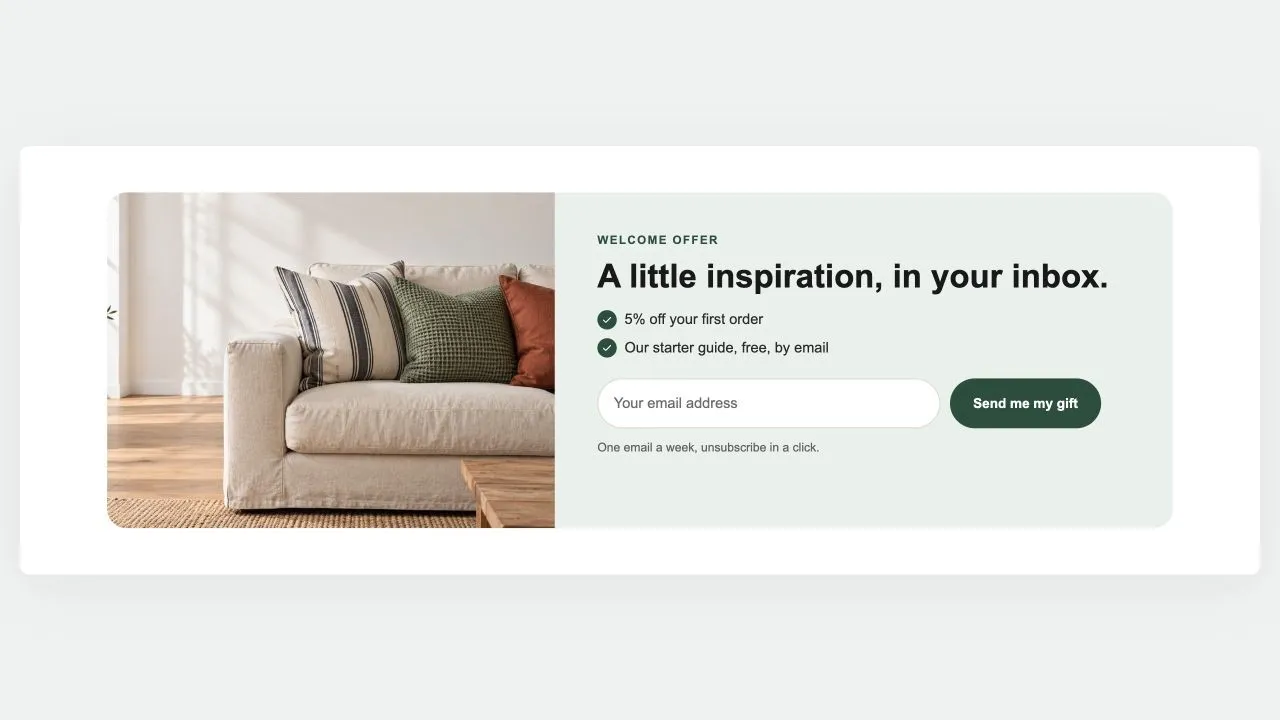
Free Newsletter Band 1
Hero & Banners
A sign-up band with an offer: a heading, three perks with a tick, the email field and the button, a photo beside it if you like. Subscribers get the newsletter tag; the thank-you shows in place.
View section →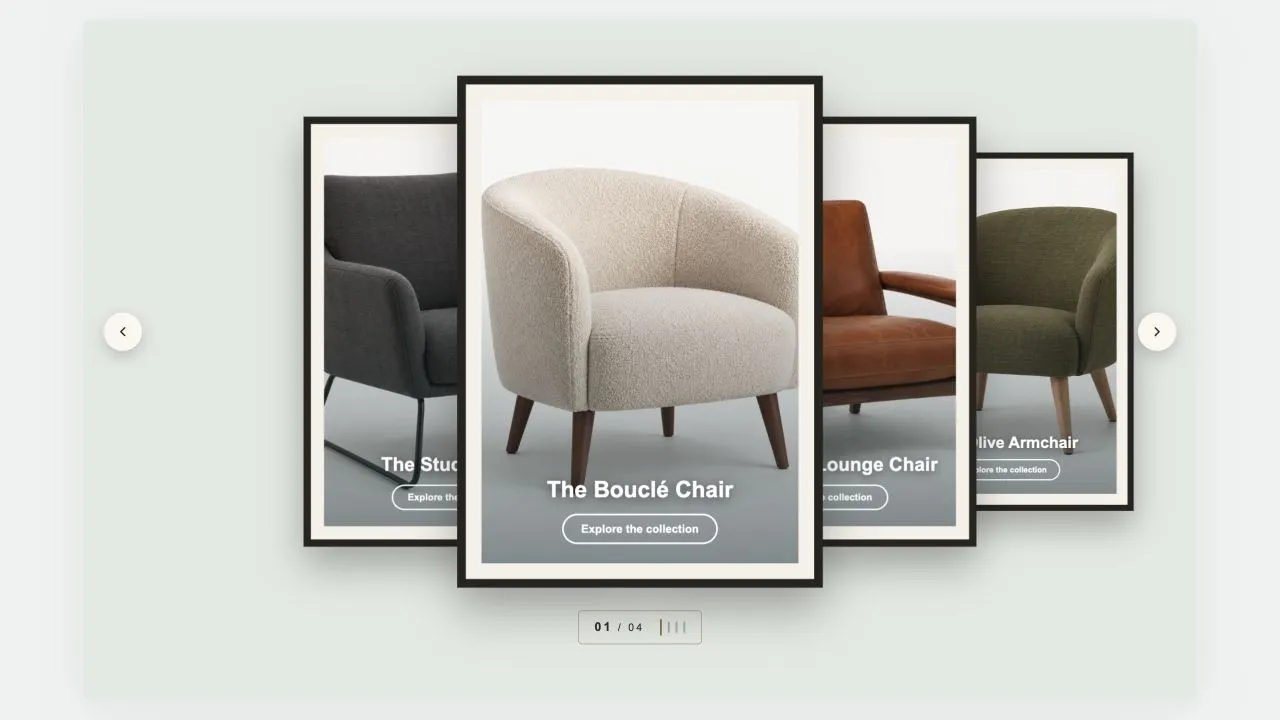 Free
Free Coverflow 2
Hero & Banners
A gallery wall: each photograph sits in a mat and a frame, hung in a row that recedes to either side of the one in front. Navigation is a brass plaque with the piece number and a row of tick marks, the way a wall label works. Hangs flat by default, and leans as far as you want it to.
View section →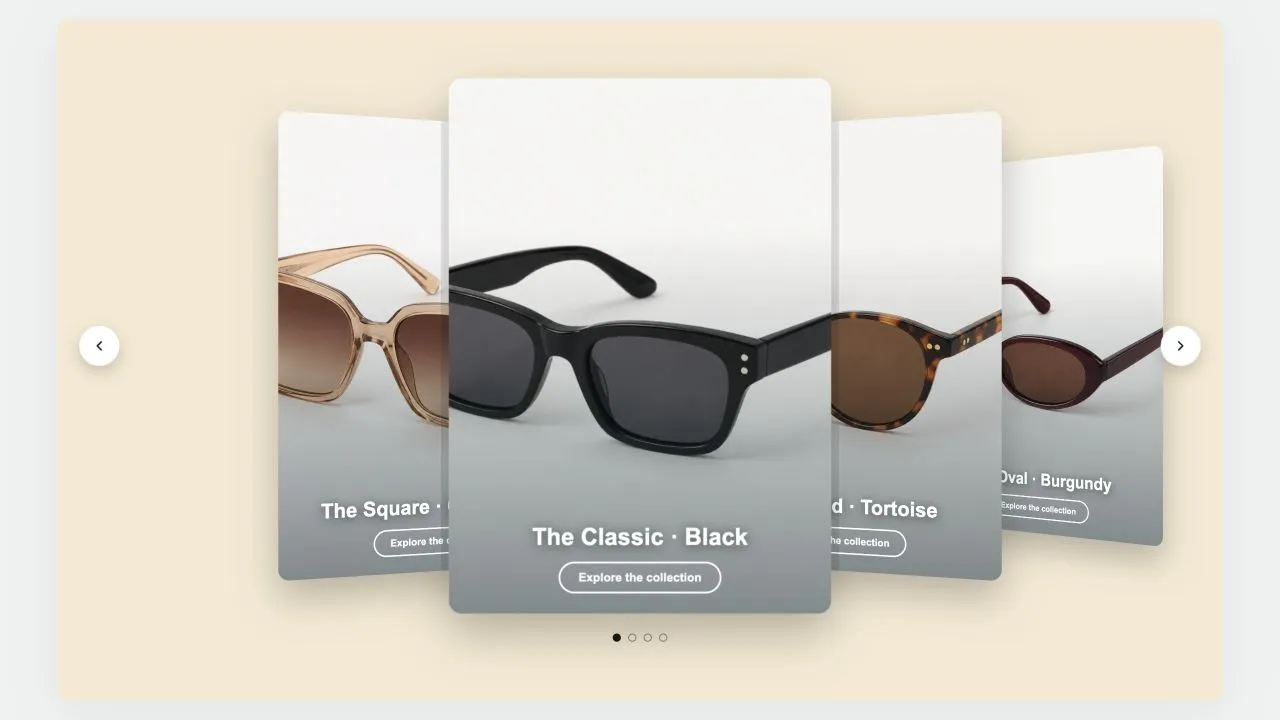 Free
Free Coverflow 1
Hero & Banners
A leaning deck of cards: one in front, its neighbours fanned out behind and shrinking with distance. Each card carries a signed offset from the centre as a CSS custom property and one transform rule reads it, so moving the deck rewrites numbers rather than markup. Clicking a card behind brings it forward.
View section →